
Odoo 20 is out, and the first question we get from clients is simple: should we upgrade now, and will anything break? We recently moved our own Odoo apps from version 19 to 20, one module at a time, so this guide is based on what actually broke for us, not on the release notes.
Short answer: the standard Odoo apps upgrade smoothly. What needs real work is everything custom, meaning your own modules, third-party apps from the Odoo App Store and any Studio changes. That is where an upgrade either goes well or turns into a week of surprises.
Should you upgrade to Odoo 20 right away?
Not always. If your company runs fine on Odoo 19 and depends on several third-party apps, wait until those apps have an Odoo 20 version. If you are starting a new project, start on Odoo 20 directly, because every upgrade you skip later saves time and money.
- Upgrade now: new projects, companies with few custom modules, or teams that need a new Odoo 20 feature
- Wait 1 to 3 months: companies that depend on many third-party apps that are not yet ported
- Plan carefully: heavy customizations, integrations with other systems or a large database
What changed in Odoo 20 for custom modules
Most of the changes are in the web client. Odoo 20 moves to Owl 3, the framework behind every screen in Odoo. If a module has its own buttons, widgets or dashboards, expect to touch that code. These are the changes that broke our modules:
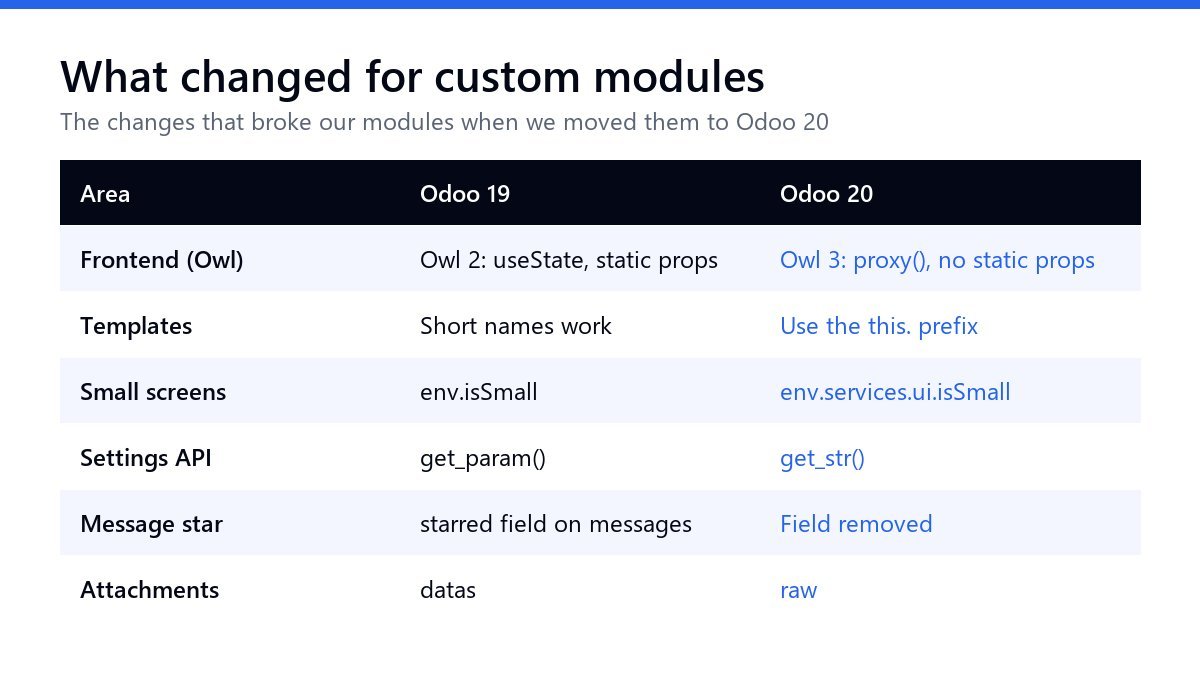
- Owl 3 replaces useState and reactive with proxy(), and components no longer declare static props
- Templates need the this. prefix when they read component values
- env.isSmall is gone; the mobile check now lives in env.services.ui.isSmall
- Reading system settings uses get_str() instead of get_param()
- The starred field on messages was removed, so any feature built on it needs its own field
- Attachments are written with raw instead of the old datas field
In our Message Center Pro app the star button stopped working on Odoo 20 because the starred field no longer exists. We added a small field of our own and the feature worked again with the same screens. Small changes like this are typical: easy to fix once you find them, but each one needs to be found.
What usually stays the same
Your data is safe. Customers, products, invoices, stock moves and accounting entries are migrated by the official Odoo upgrade service. Python business logic in custom modules also tends to keep working with only small changes. The time goes into screens, reports and integrations.
How to upgrade from Odoo 19 to Odoo 20 safely
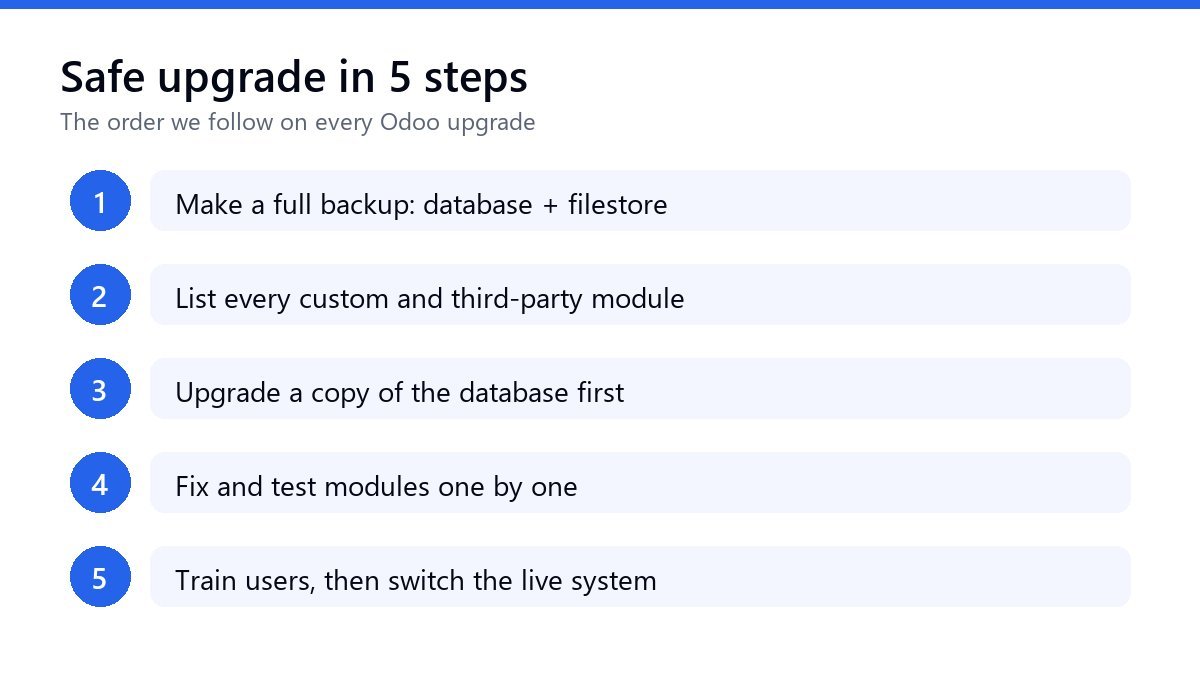
- Make a full backup of the database and the filestore, and keep it somewhere outside the server
- List every module that is not standard Odoo: your own, App Store apps and Studio changes
- Upgrade a copy of the database first, never the live one
- Fix and test the custom modules one by one on that copy, with real users checking their daily work
- When everything passes, plan a quiet evening or weekend, upgrade the live database and train users on what changed
The most common mistake is upgrading the live database first and fixing problems afterwards. A test copy costs one extra day and saves the business from a stop.
How long does an Odoo 20 upgrade take?
For a company with only standard apps, a few days including testing. With 5 to 10 custom modules, plan 1 to 3 weeks. Large databases with integrations and heavy customization can take longer. The number of custom modules, not the size of the company, decides the time.
Frequently asked questions
Can I go from Odoo 17 or 18 straight to Odoo 20?
Yes. The data is upgraded through each version in one process, but custom modules still need to be updated for every change on the way, so the work grows with each skipped version.
Will my third-party apps work on Odoo 20?
Only if the developer released an Odoo 20 version. Check each app on the Odoo App Store before you plan the upgrade. All Technoverse apps are available for Odoo 14 to 20.
Is Odoo Community also moving to version 20?
Yes. Community and Enterprise share the same version, and the same changes apply to custom modules on both.