
Inventory & Logistics Community

Product QR Code Generator

Assign unique QR codes to products, generate them in bulk, and print QR labels.

$9.90 USD
Choose your Odoo version
Ask a question
Built by an Odoo partner Initial setup support Download link by email
Product QR Code Generator
What's included

Key features

1

Adds a unique QR Code to every product with a live QR image preview

2

Generate codes one by one, automatically on product creation (Settings), or in

3

Print a QR label sheet for the selected products

4

Search products by their QR code

Inside the module

Screenshots

Real screens from Product QR Code Generator — click any image to see it full size.

Step 1

Product QR Code Generator

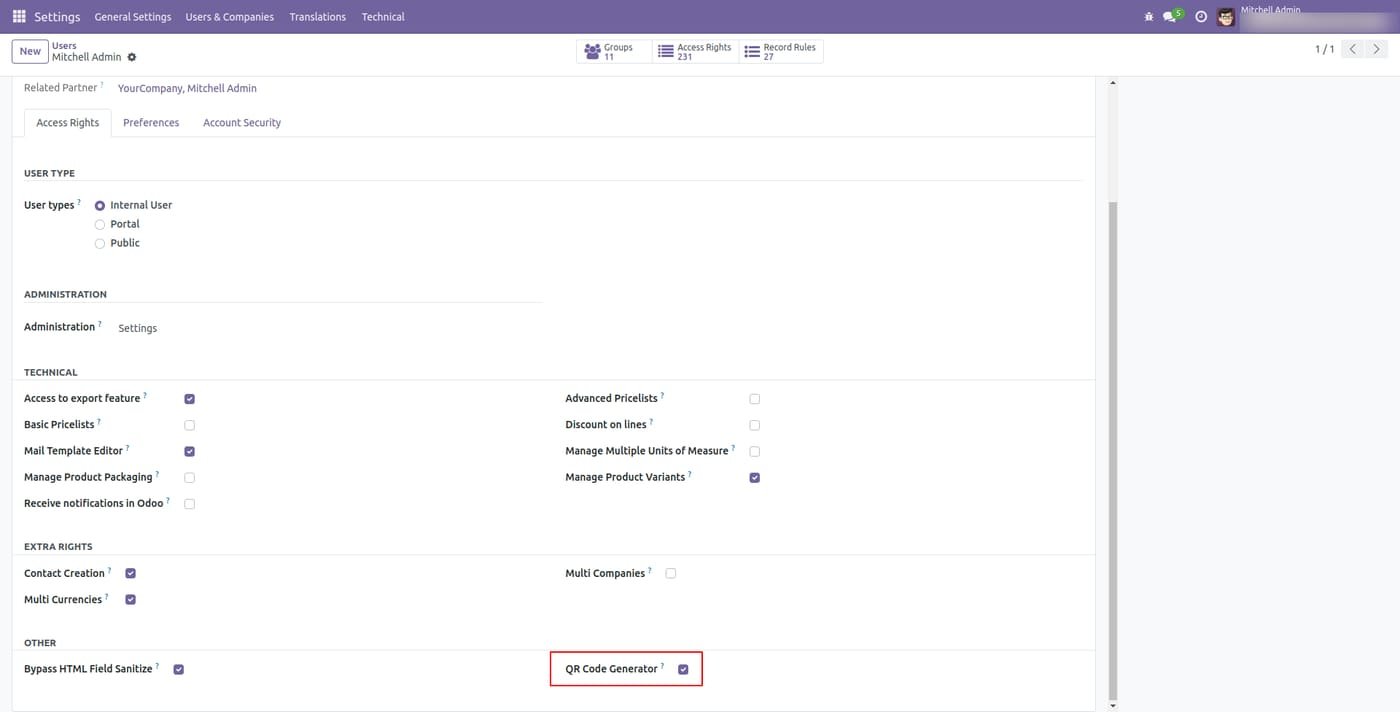
User Setting: Tick the 'QR Code Generator' group.

Product QR Code Generator
Step 2

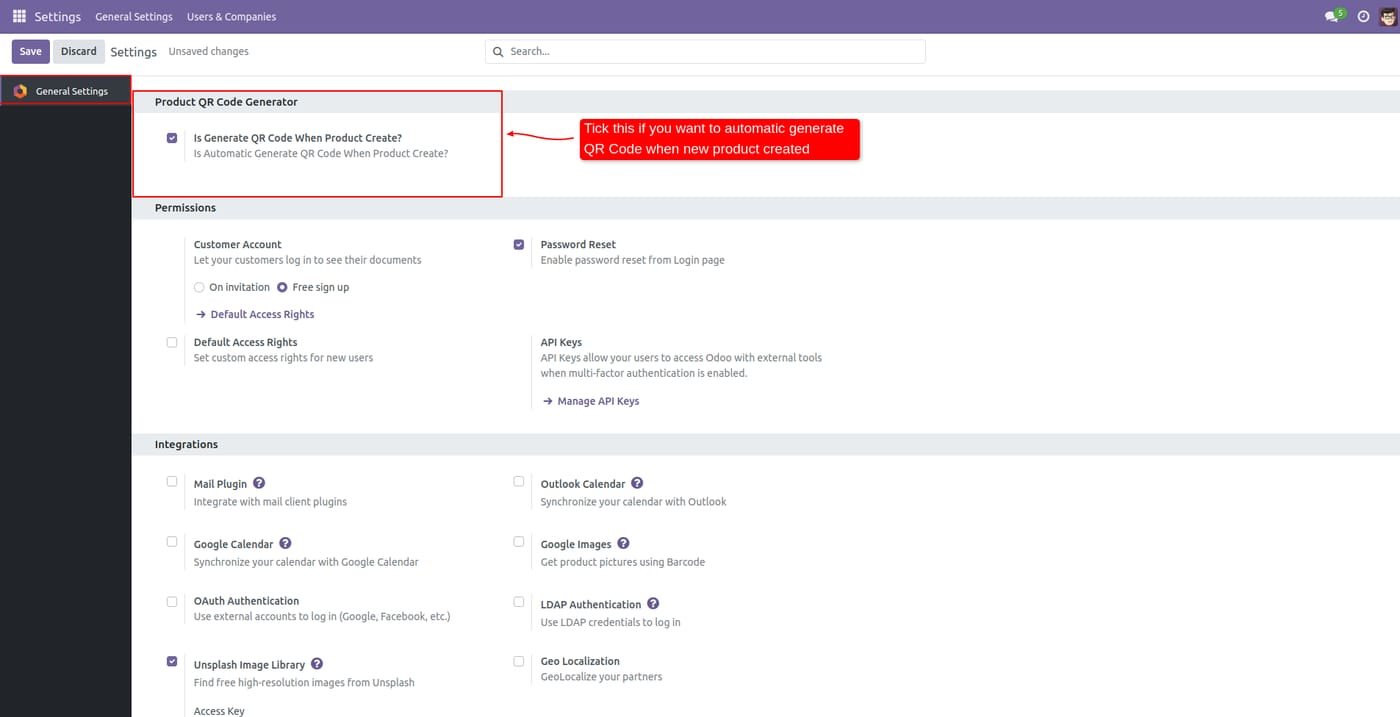
Tick the 'Is generate QR Code When Product Create' option to automatically generate a QR Code when new products are created.

Tick the 'Is generate QR Code When Product Create' option to automatically generate a QR Code when new products are created.
Step 3

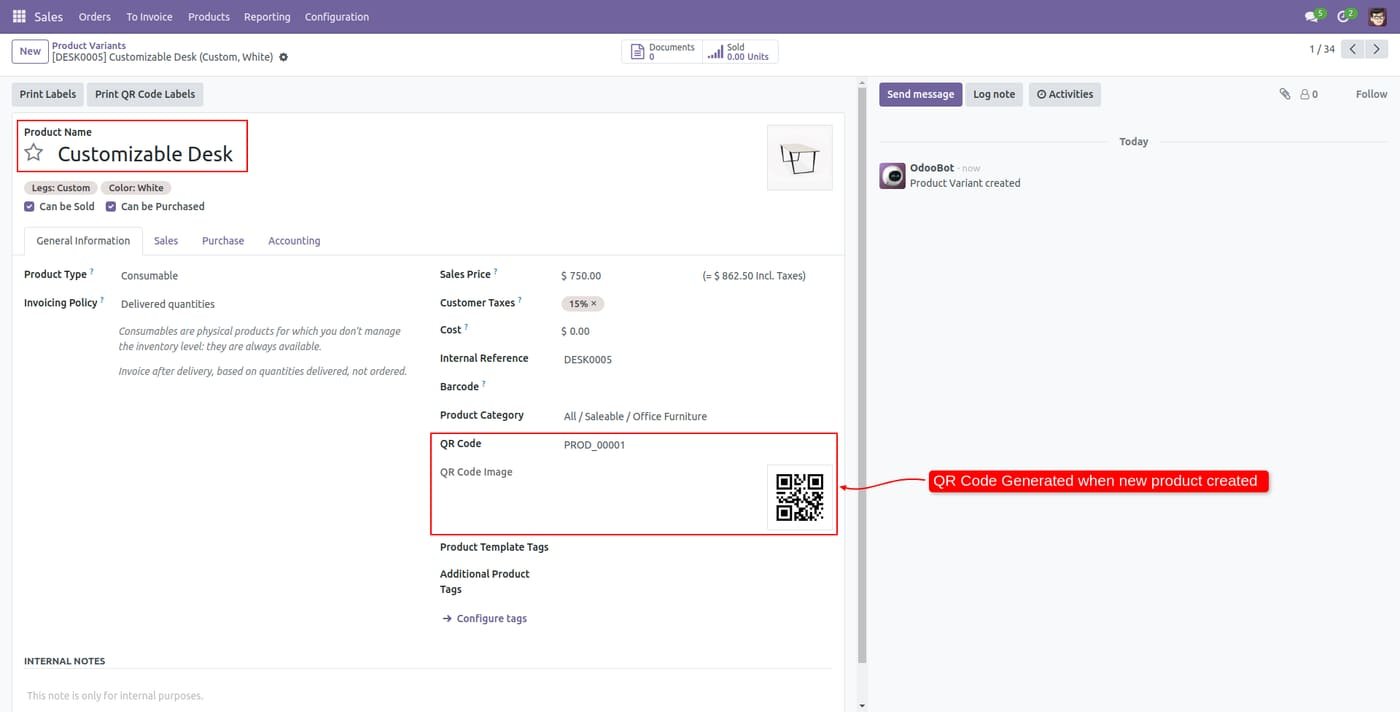
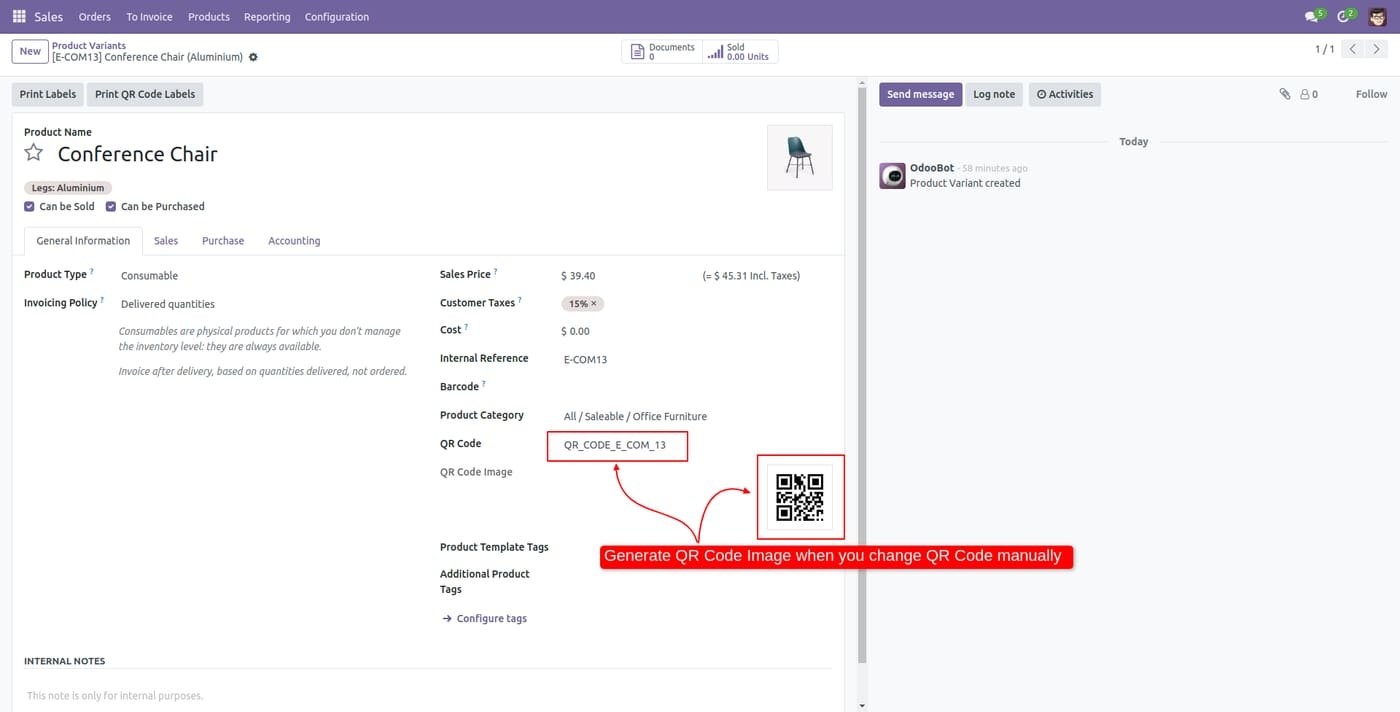
Here, the product was created with a QR Code.

Here, the product was created with a QR Code.
Step 4

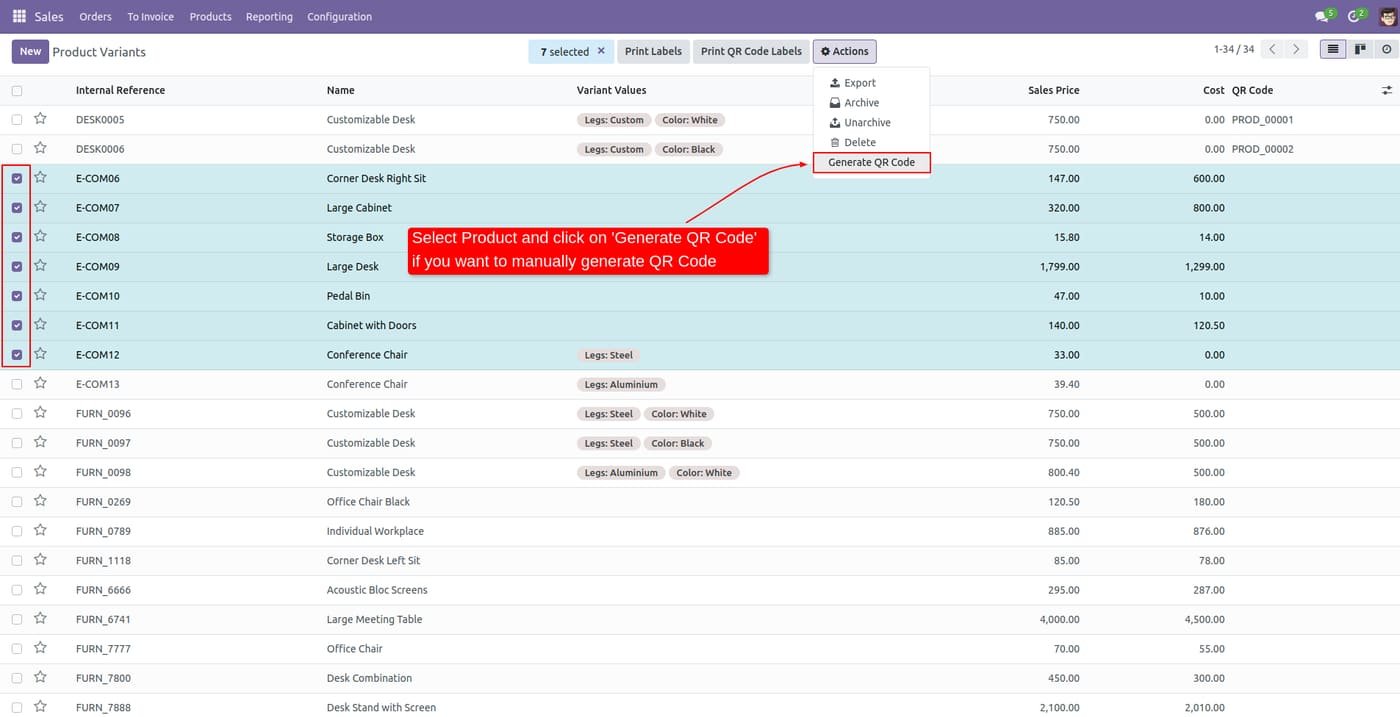
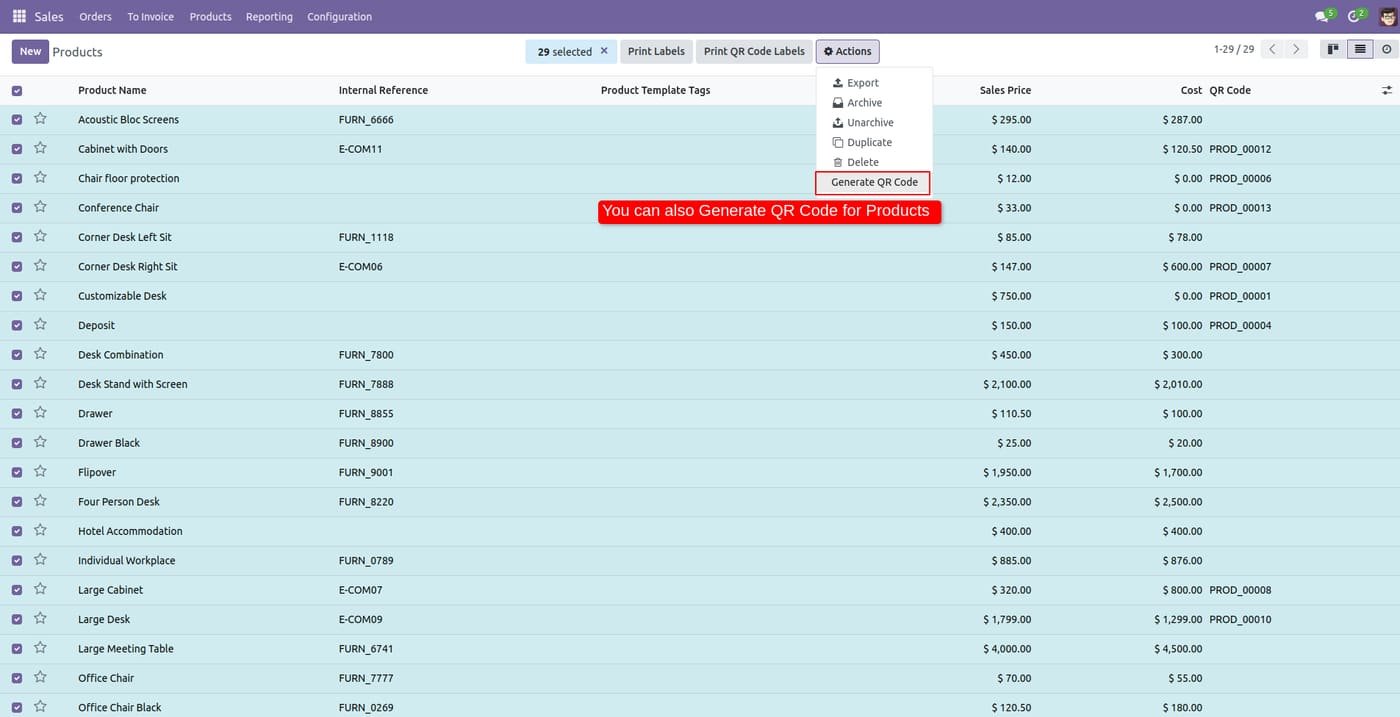
If you want to generate manually QR Code of products then select it and click 'Generate QR Code'.

If you want to generate manually QR Code of products then select it and click 'Generate QR Code'.
Step 5

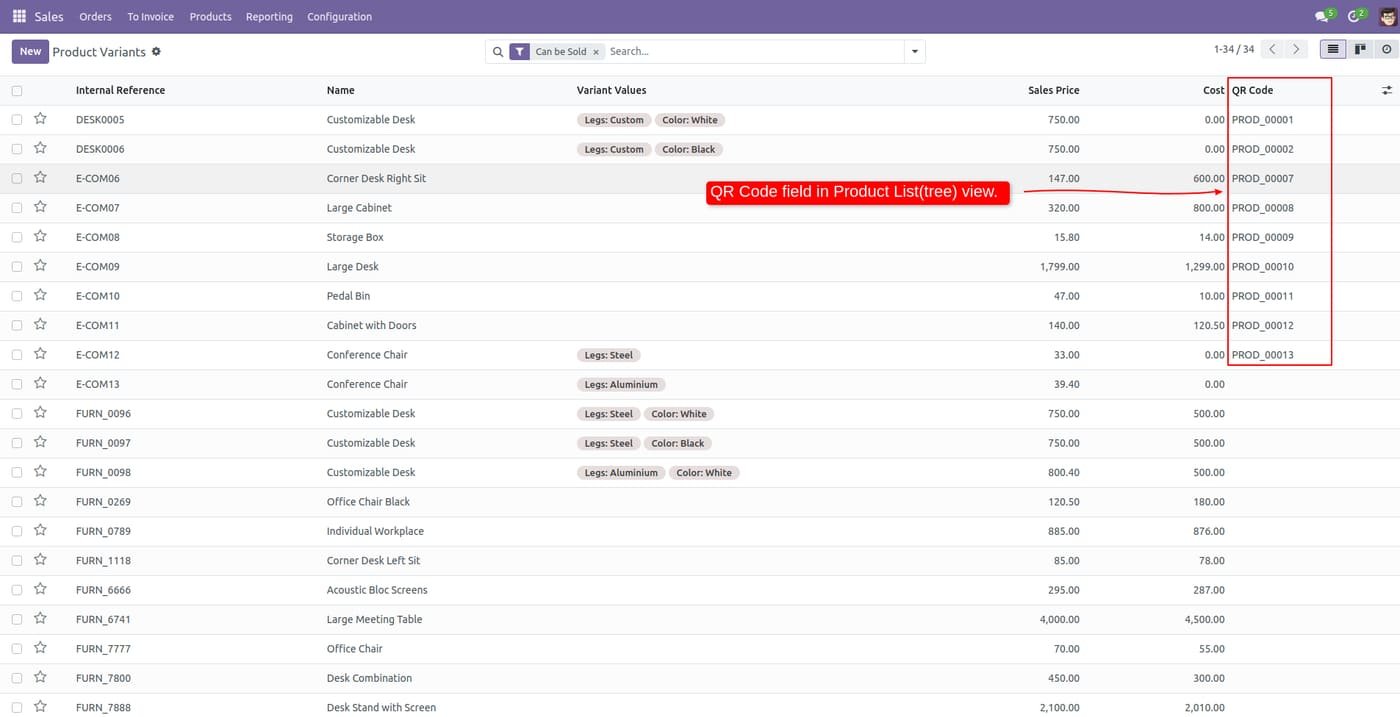
The product QR Code tree view looks like below.

The product QR Code tree view looks like below.
Step 6

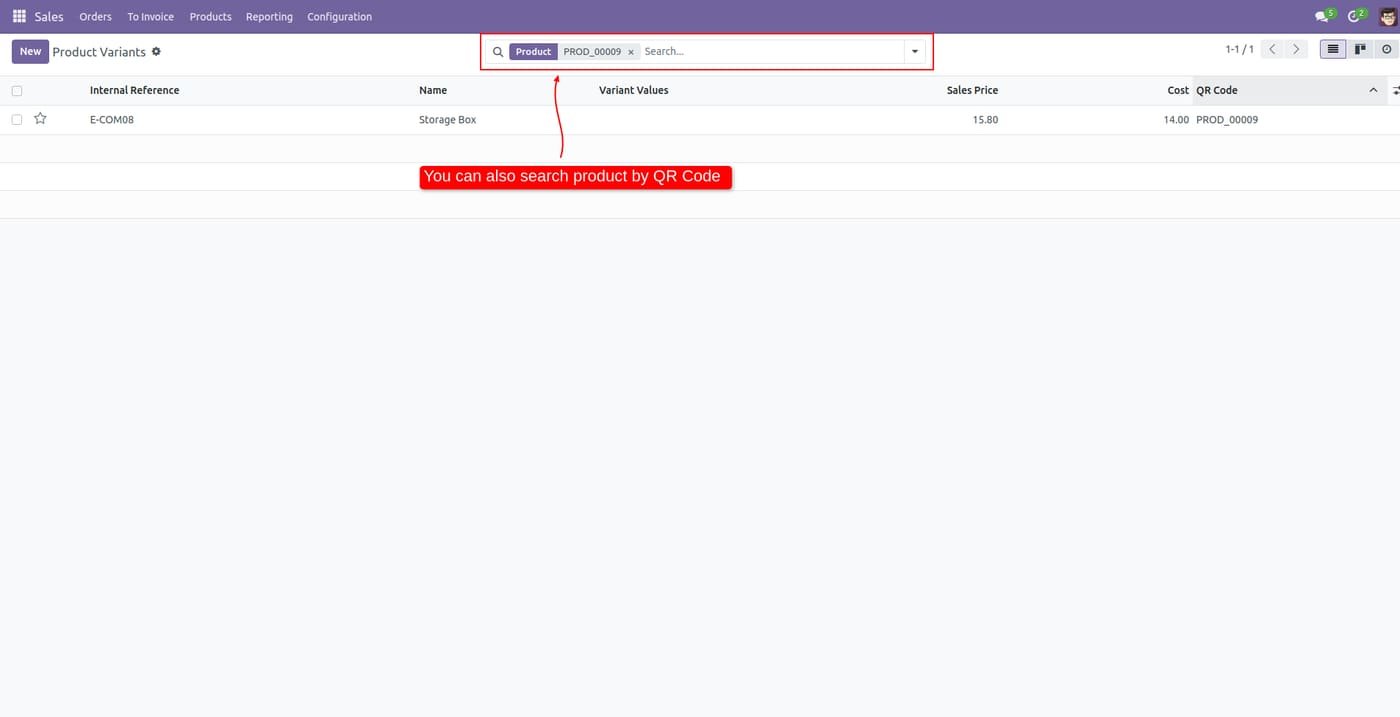
Using a search bar you can search products by QR.

Using a search bar you can search products by QR.
Step 7

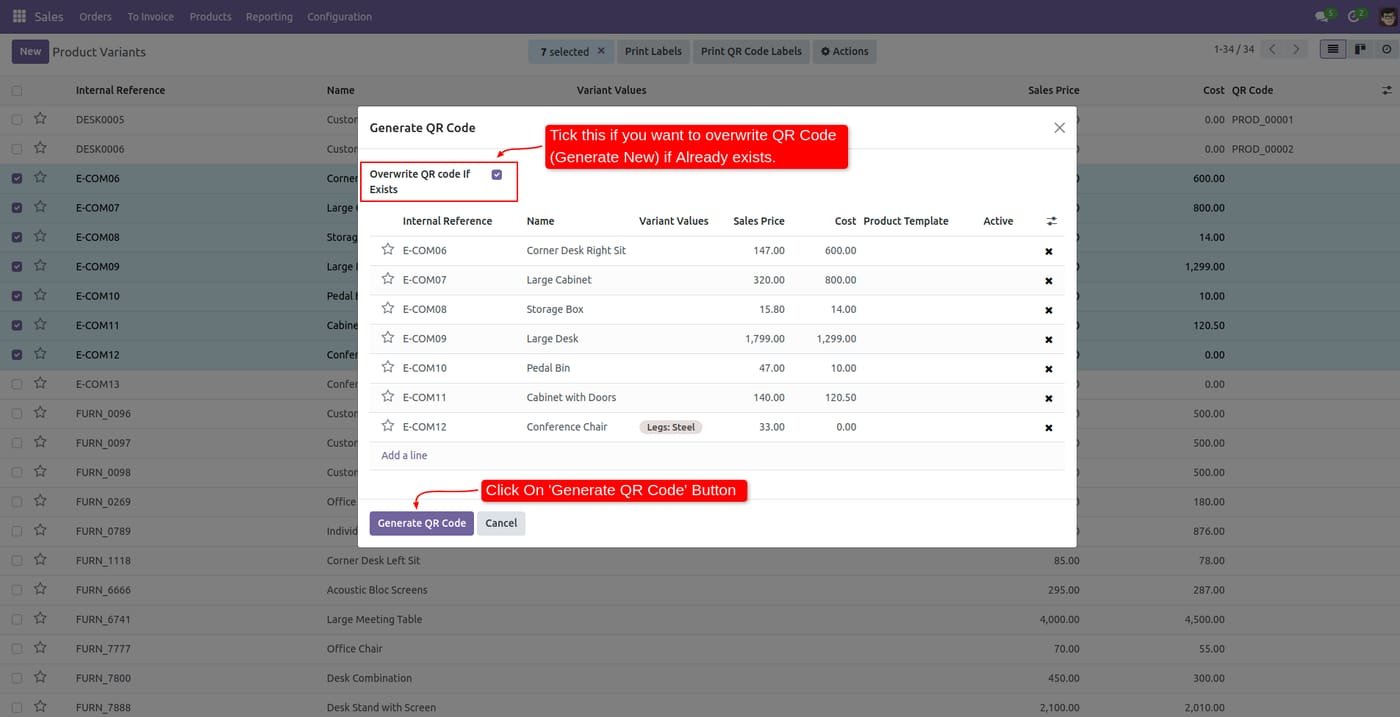
Select product variants and click on 'Generate QR Code' to generate QR for product variants.

Select product variants and click on 'Generate QR Code' to generate QR for product variants.
Step 8

Tick the checkbox 'Overwrite QR Code If Exist' If you want to overwrite a QR Code that has already a QR code.

Tick the checkbox 'Overwrite QR Code If Exist' If you want to overwrite a QR Code that has already a QR code.
Step 9

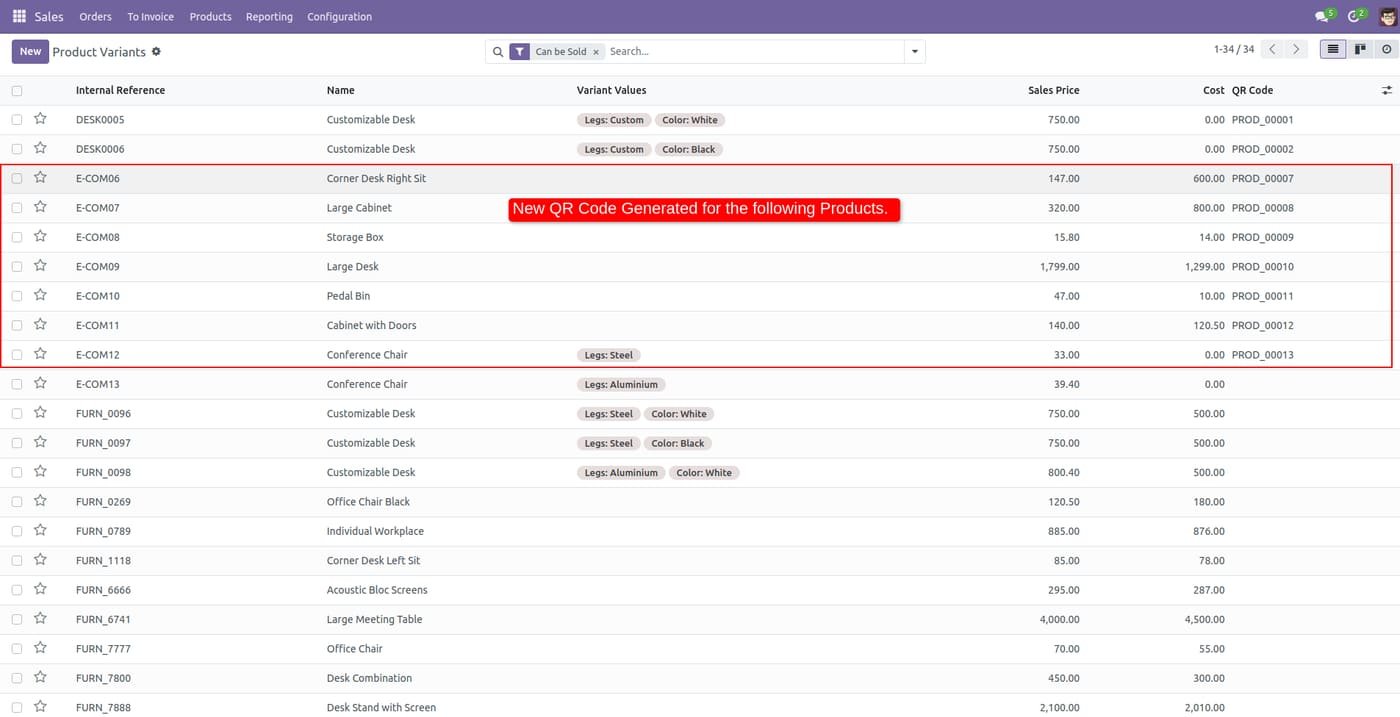
You can see the newly generated QR Code.

You can see the newly generated QR Code.
Step 10

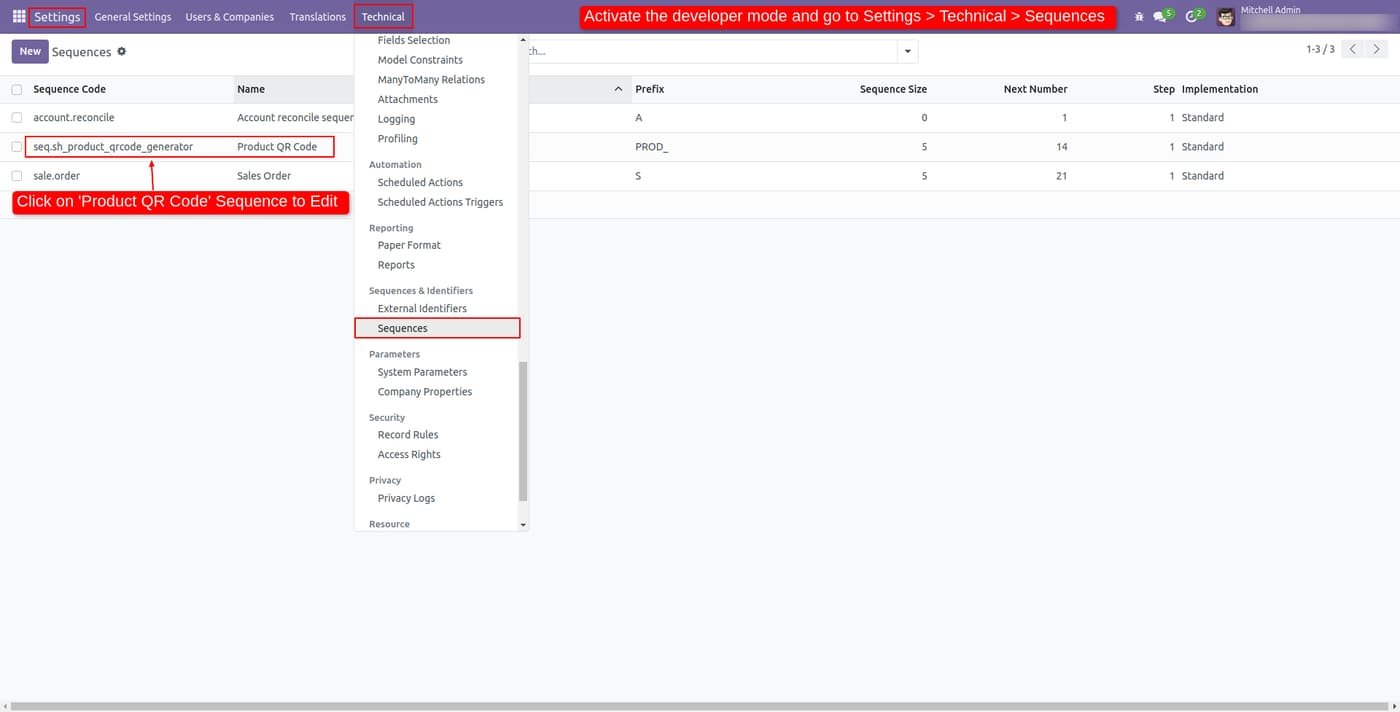
Users can change the Sequence of the QR Code.

Users can change the Sequence of the QR Code.
Step 11

QR code sequence

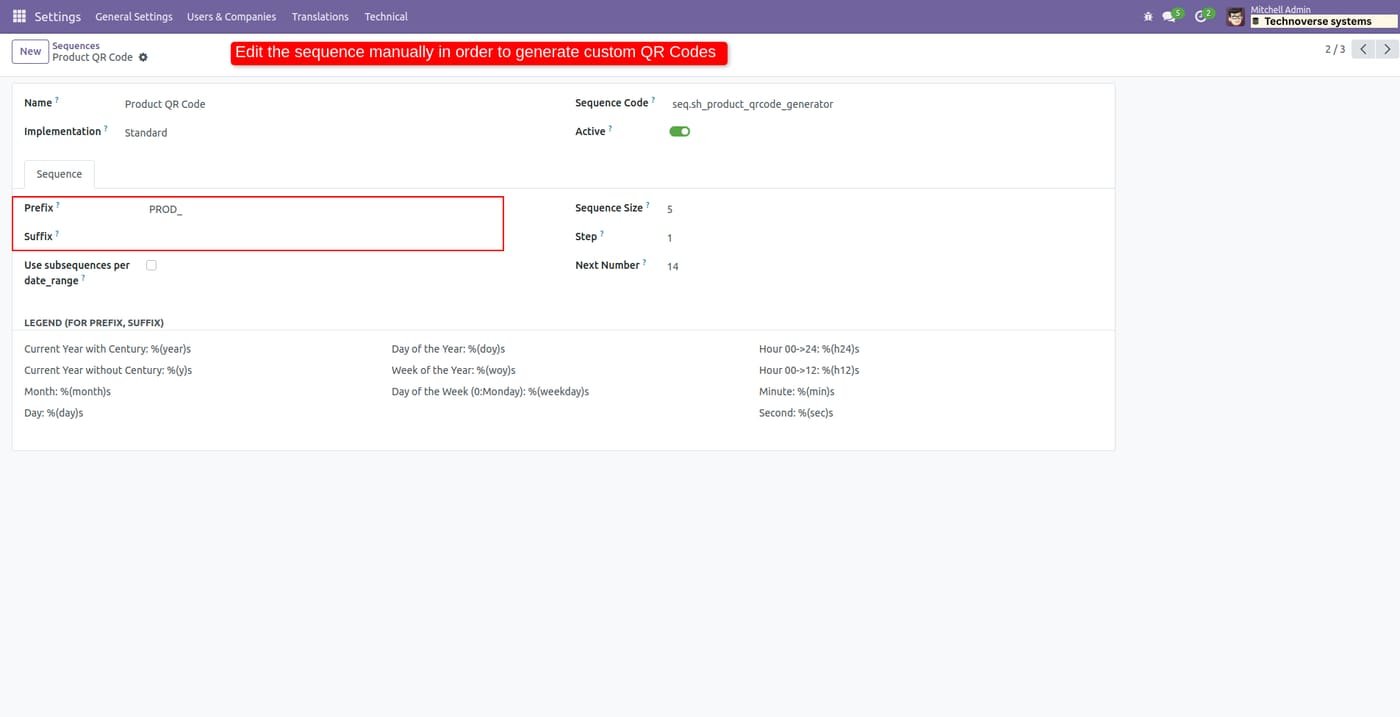
Set a custom prefix and suffix for the QR codes generated for your products.

QR code sequence
Step 12

The sequence QR Code template looks like below.

The sequence QR Code template looks like below.
Common questions

Questions aboutthis module.

Something else? Ask our team.

This build is for Odoo 18. Need it for another version? Contact us and we will let you know when it is available.

Yes. Every purchase includes free deployment — after payment our team installs and sets up the module on your Odoo.

It builds on these Odoo apps: product, base_setup.

Not sure it's theright fit?

Book a free consultation and we'll help you pick the right modules for your workflow.