Productivity & Tools

AI Copilot Center

An AI assistant inside Odoo: ask questions in plain language, get answers with tables and charts, and let the AI create or update records, send emails and schedule reminders, always after your approval. Works with OpenAI, Claude, Gemini, OpenRouter, Groq, DeepSeek or a free local model, with permissions, an audit log and cost limits.

$199 USD
Choose your Odoo version
Ask a question
Built by an Odoo partner Initial setup support Download link by email
AI Copilot Center
What's included

Key features

1

Ask in Plain Language

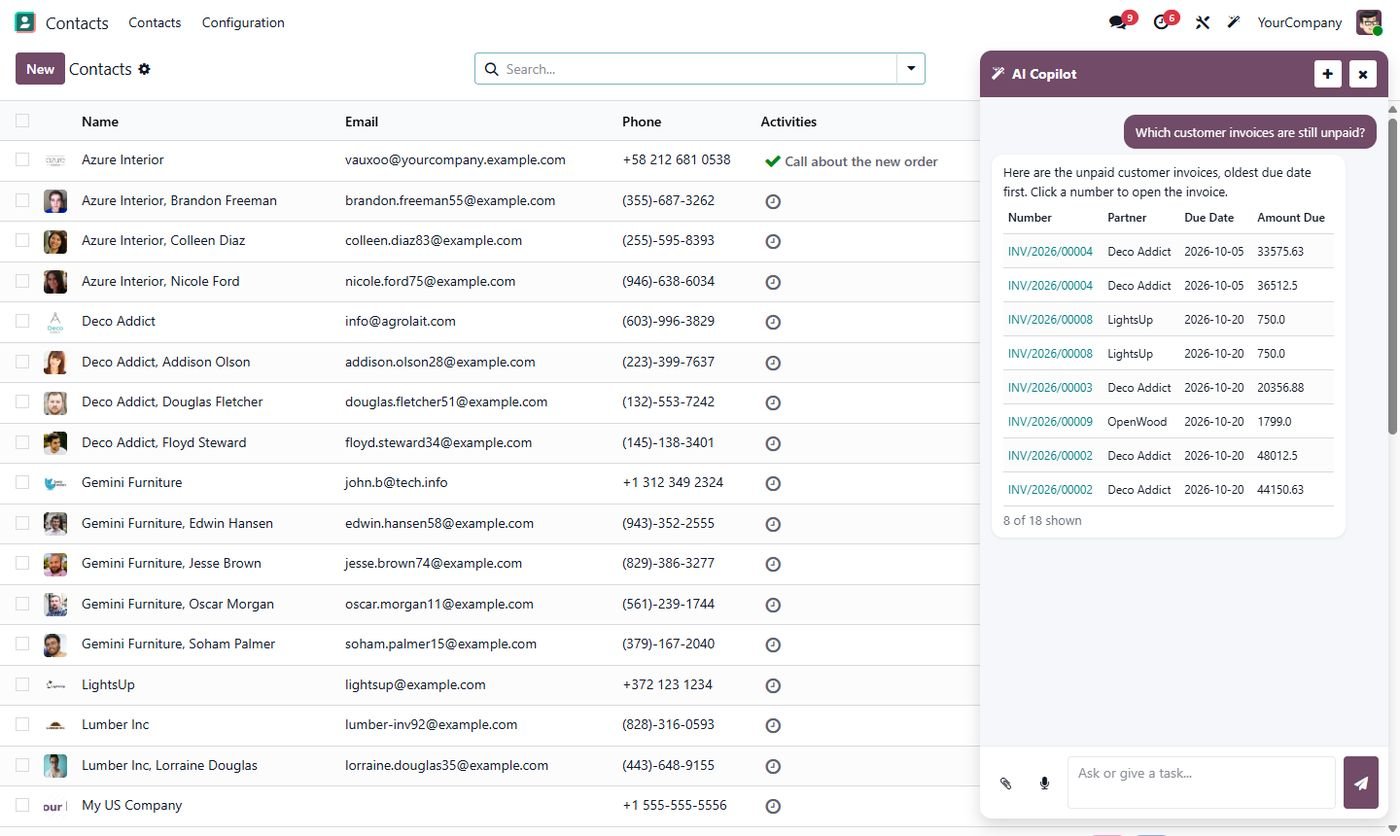
Unpaid invoices, top customers, stock, leads: ask in English, Urdu or any language and get a clear answer with a table and links to the records.

2

Charts & Excel Reports

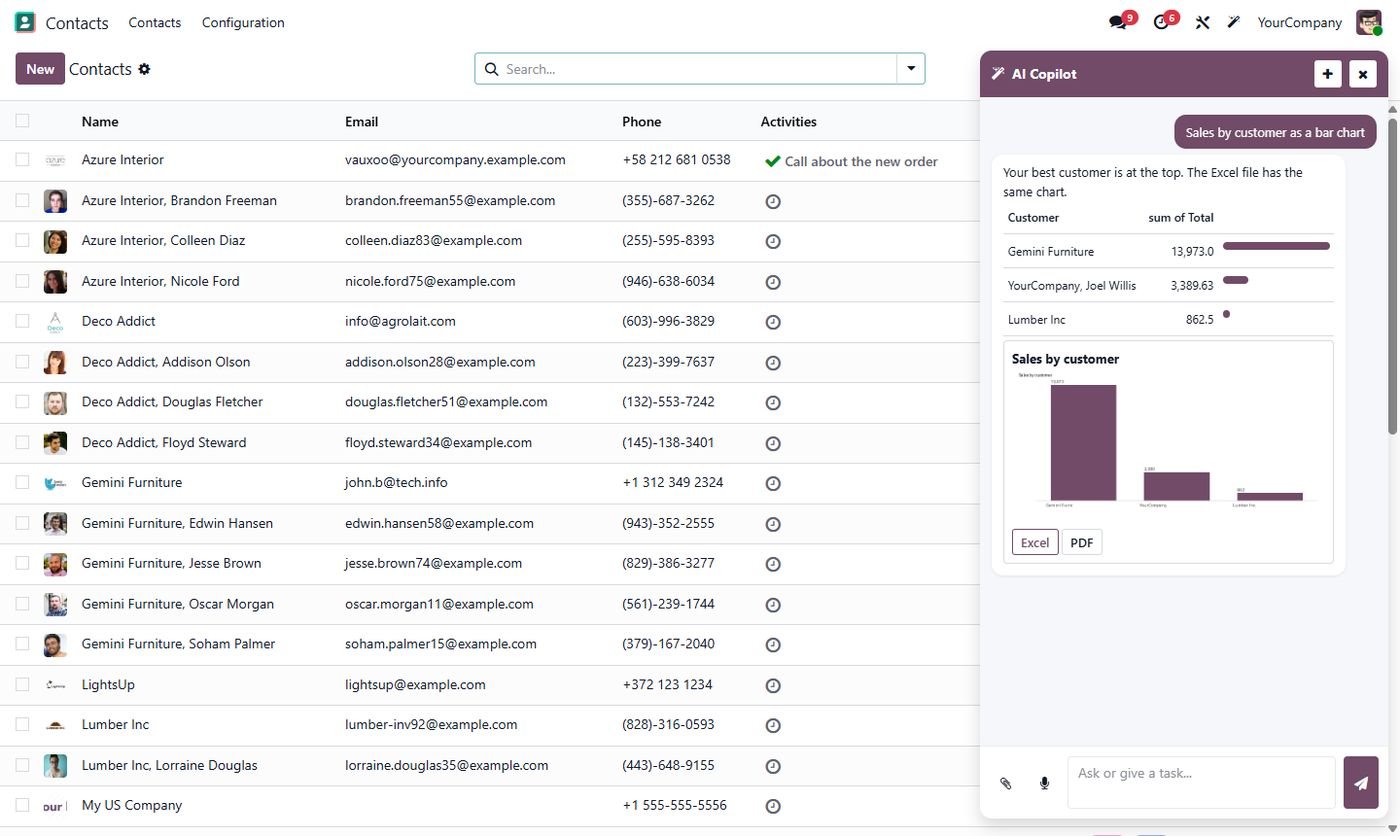
Bar, line and pie charts in the chat, with an Excel file (with a native chart) and a PDF for every report.

3

Works With Your Data

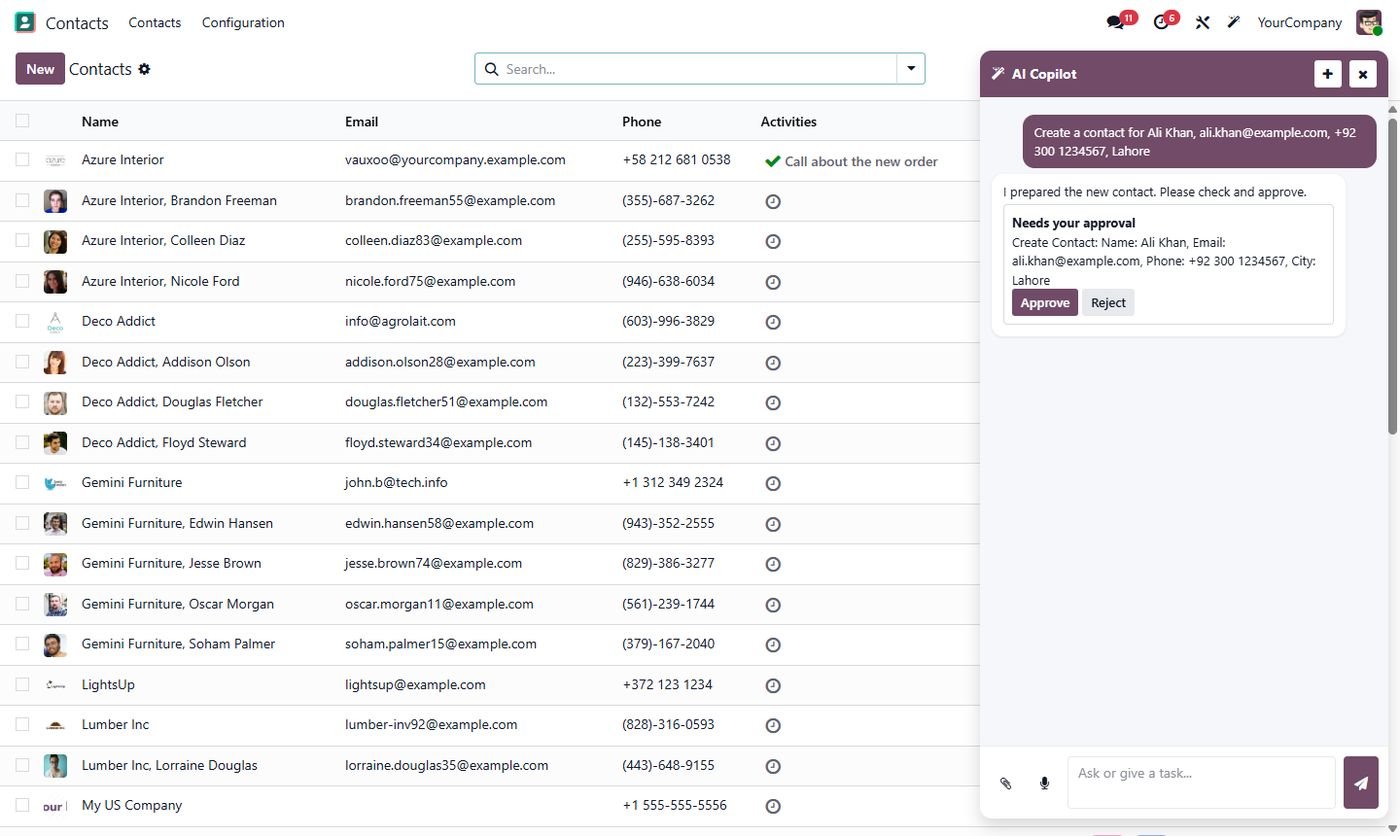
Create contacts, quotations or tasks and update records by chat. Nothing is saved until you click Approve, and every change can be undone.

4

Reads Your Documents

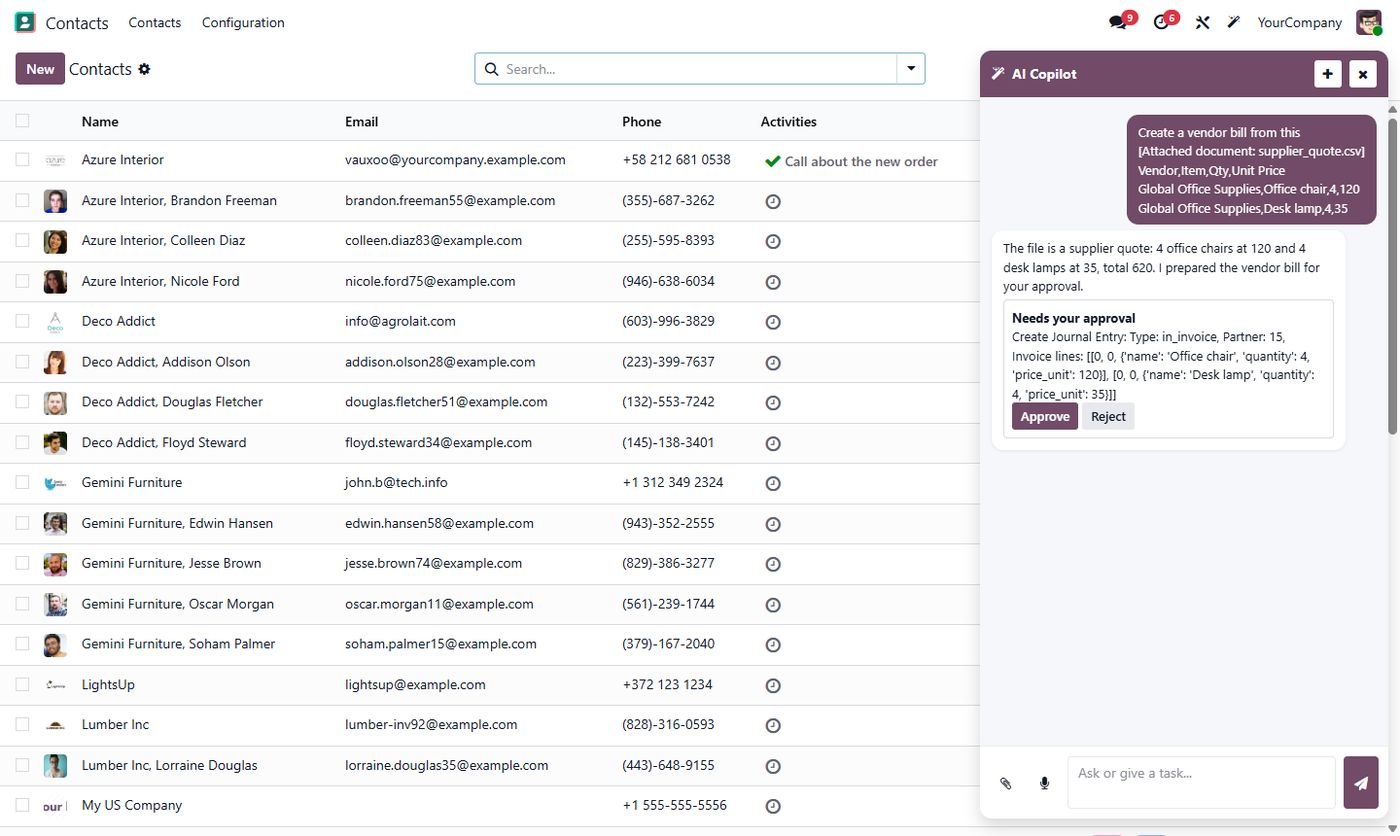
Attach a PDF, CSV or a photo of a bill or business card. The AI reads it and prepares the vendor bill or contact for you.

5

Emails, Reminders & WhatsApp

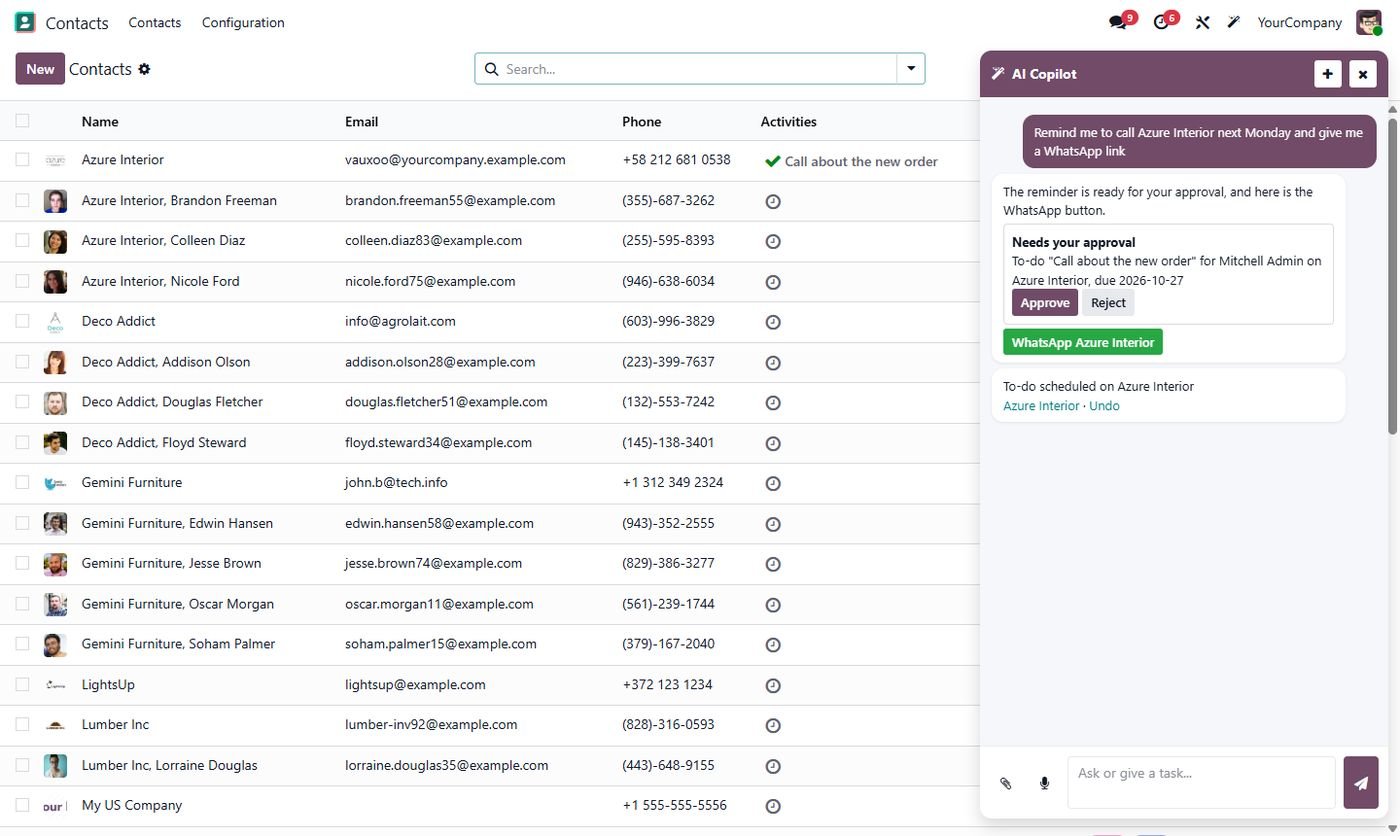
Let the AI draft emails on a record, schedule activities and give you a one-click WhatsApp message for the customer.

6

Any AI Provider

OpenAI, Anthropic Claude, Google Gemini, OpenRouter, Groq, DeepSeek, any OpenAI-compatible API, or a free local Ollama model.

7

Safe by Design

The AI uses the user's own access rights, cannot delete, follows your model permissions and writes every action in the audit log.

8

Cost Under Control

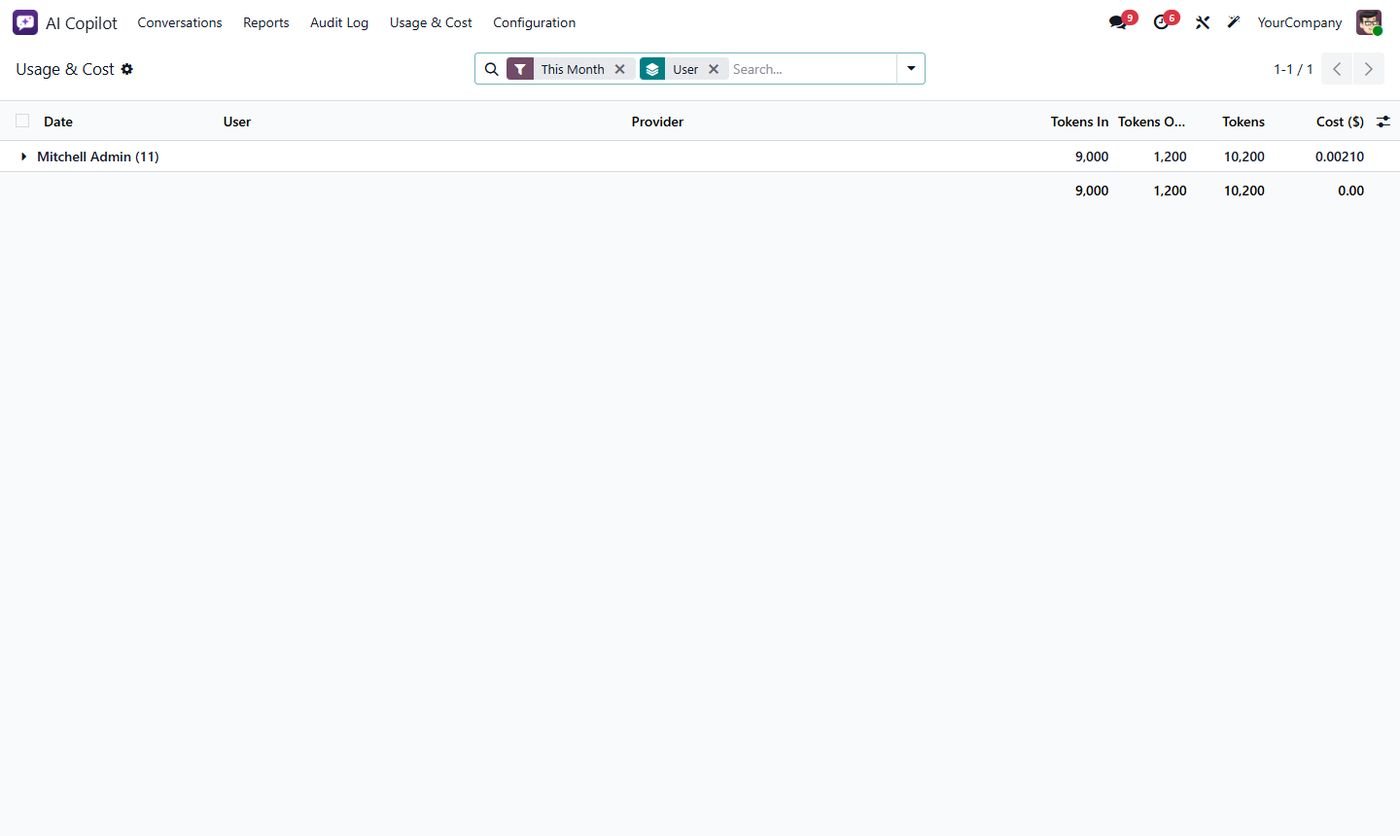
Tokens and cost per user and provider, a daily token limit per user, a monthly company budget and a daily business summary email.

Inside the module

Screenshots

Real screens from AI Copilot Center — click any image to see it full size.

Step 1

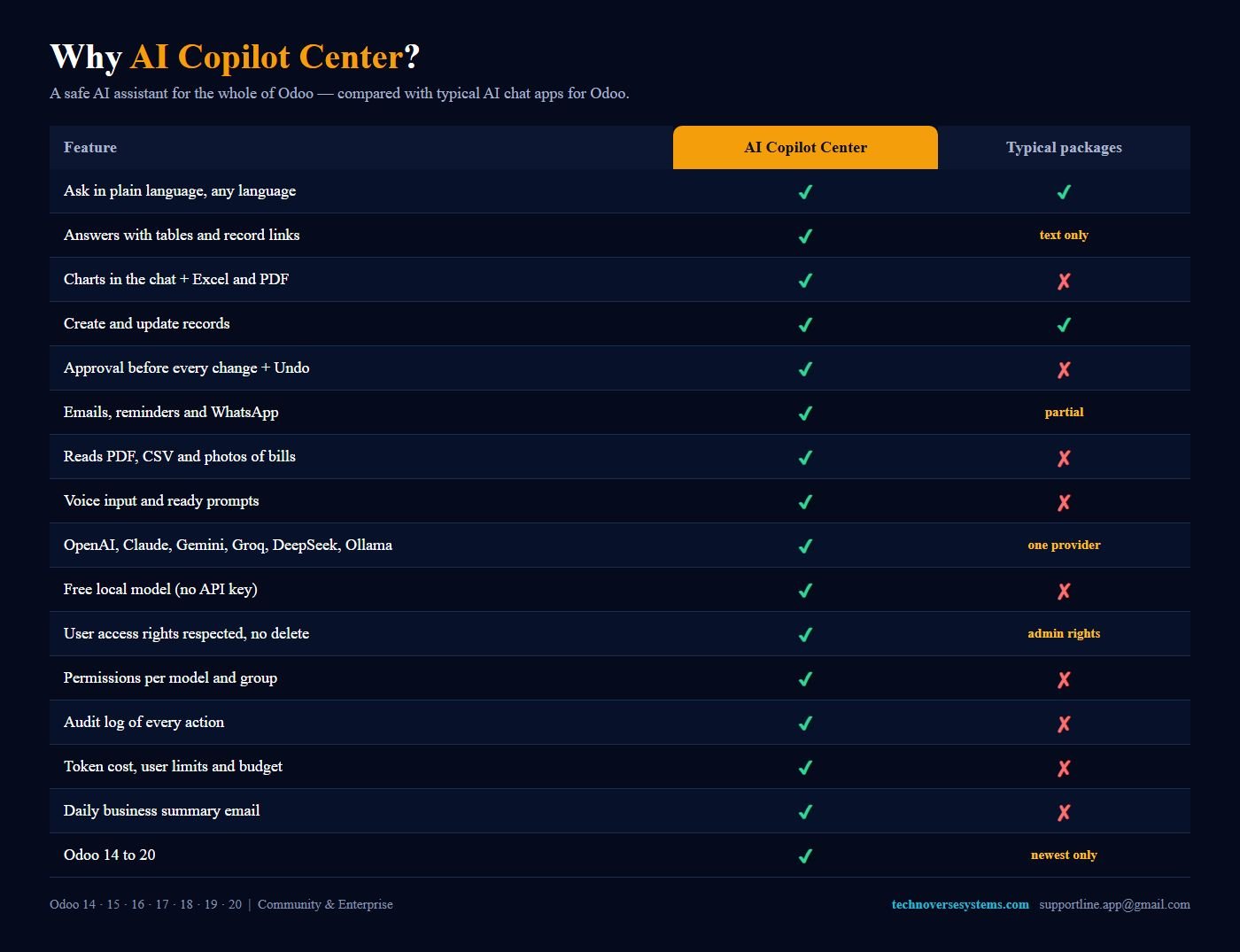
Why AI Copilot Center

A safe AI assistant for the whole of Odoo, compared with typical AI chat apps.

Why AI Copilot Center
Step 2

Ask in plain language

Answers with a table and links that open the records, in the language you write in.

Ask in plain language
Step 3

Charts, Excel and PDF

Bar, line and pie charts in the chat with an Excel file and a PDF report.

Charts, Excel and PDF
Step 4

Approve before saving

The AI prepares the record; nothing is saved until you click Approve.

Approve before saving
Step 5

Reminders and WhatsApp

Schedule activities after approval and send a ready WhatsApp message in one click.

Reminders and WhatsApp
Step 6

Reads your documents

Attach a PDF, CSV or photo of a bill and the AI prepares the vendor bill.

Reads your documents
Step 7

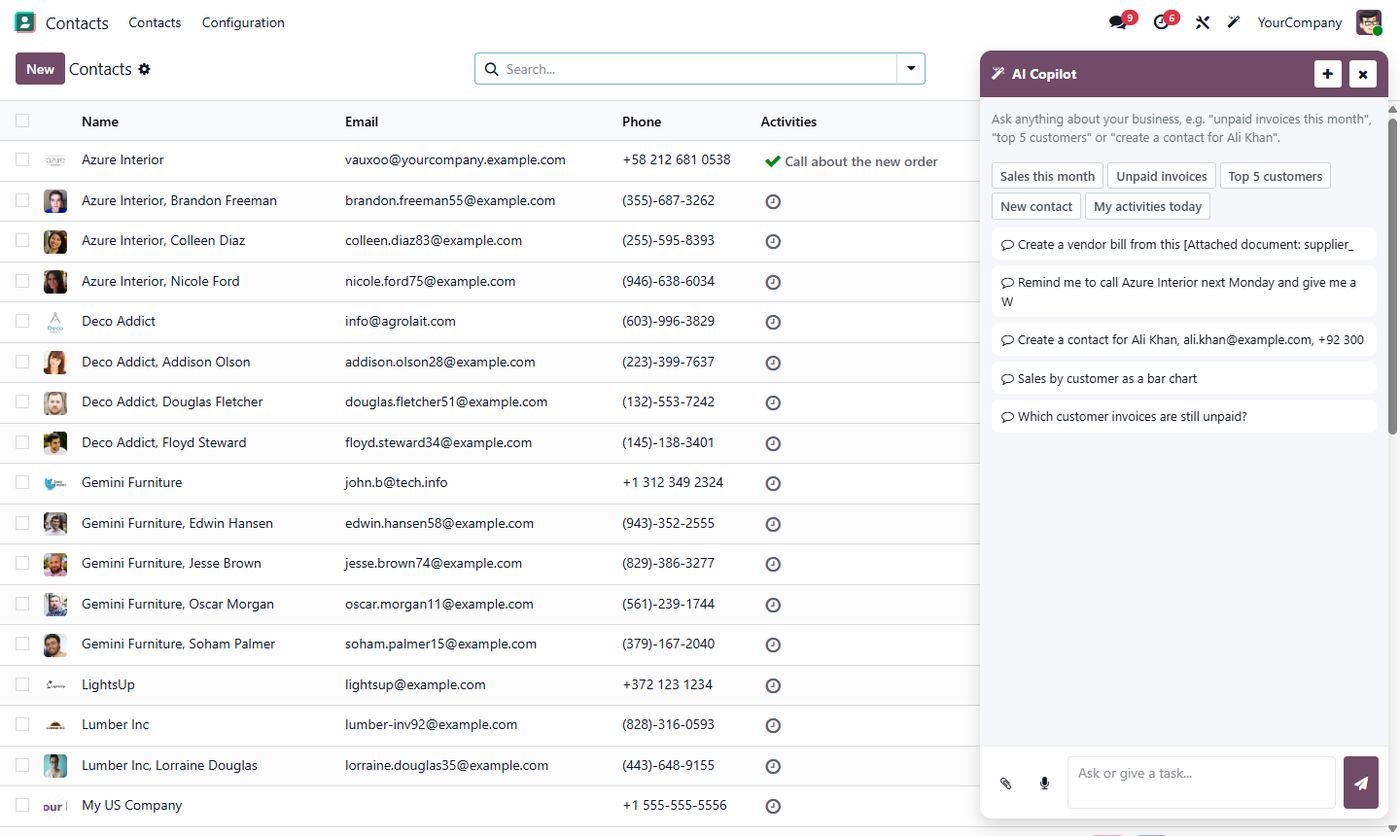
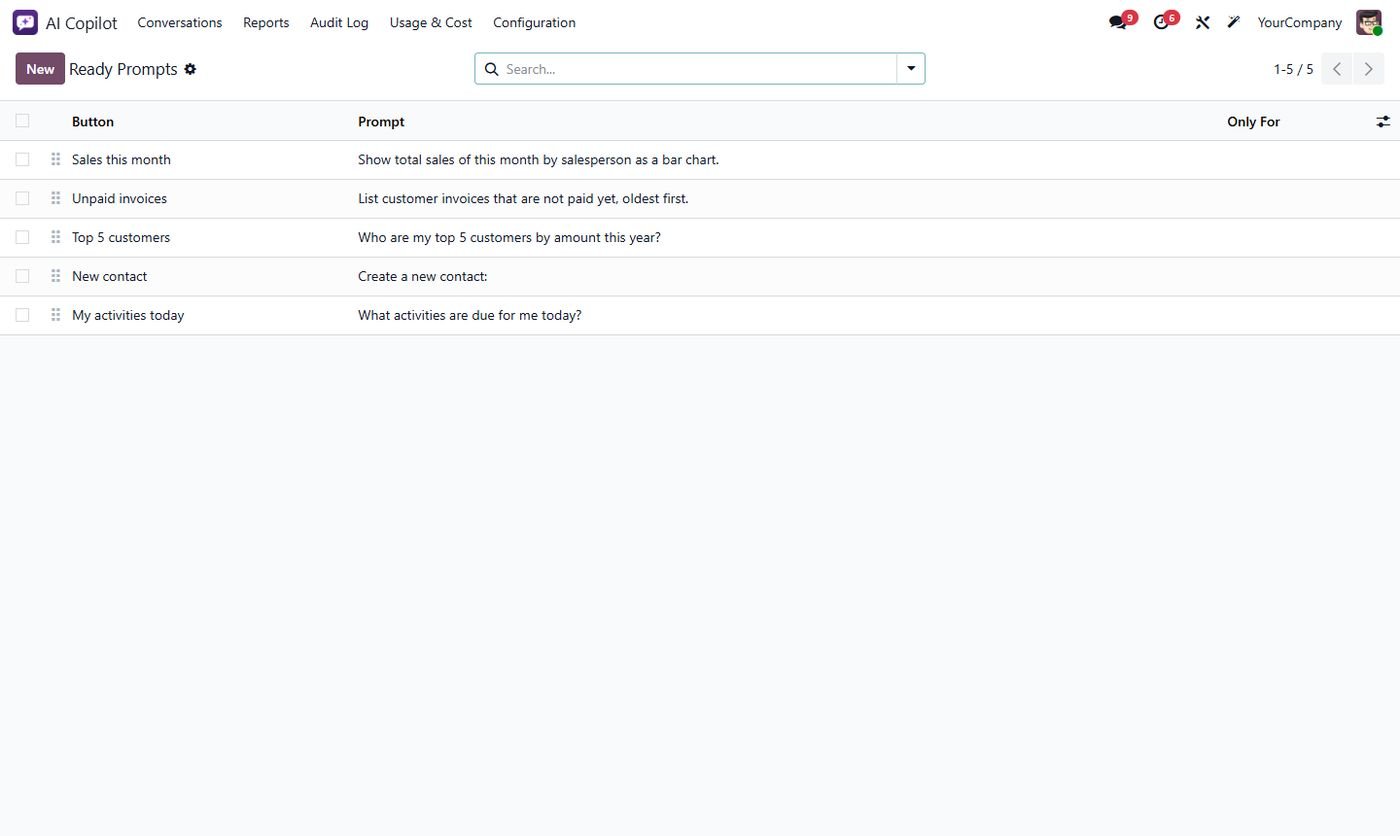
Ready prompts and voice

One-click prompt buttons, voice input, file upload and chat history.

Ready prompts and voice
Step 8

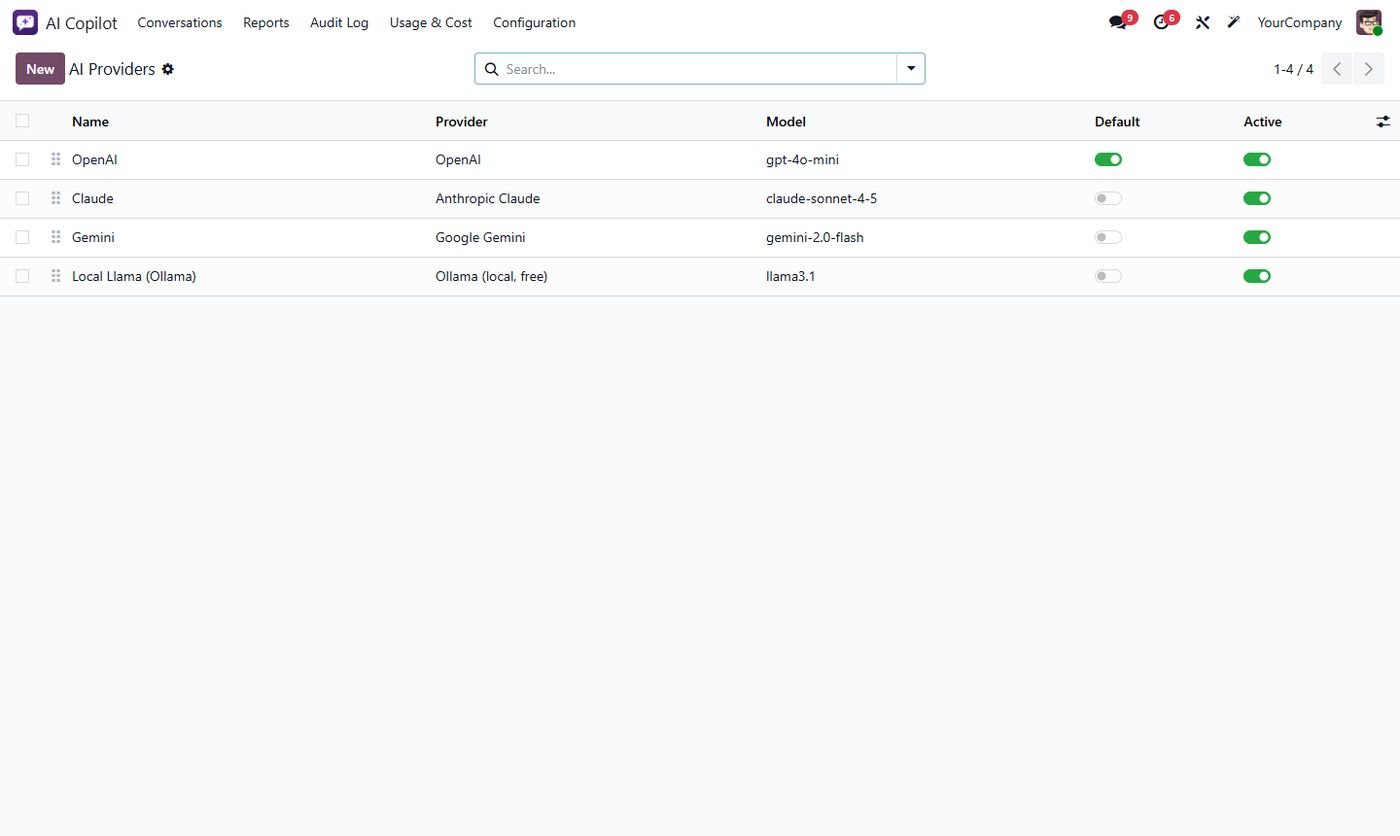
Any AI provider

OpenAI, Claude, Gemini, OpenRouter, Groq, DeepSeek or a free local Ollama model.

Any AI provider
Step 9

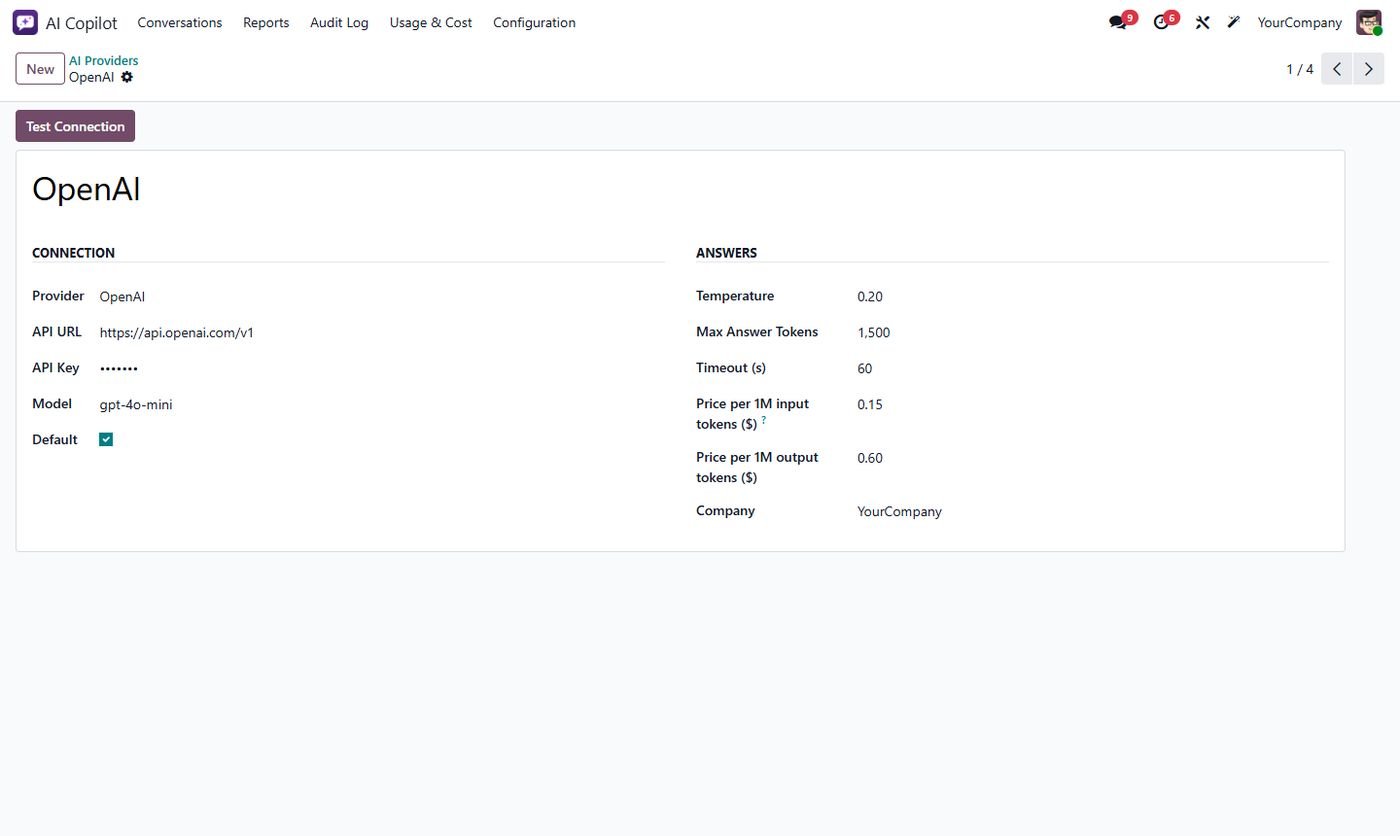
Provider settings

Model, temperature, answer length, timeout, token prices and a Test Connection button.

Provider settings
Step 10

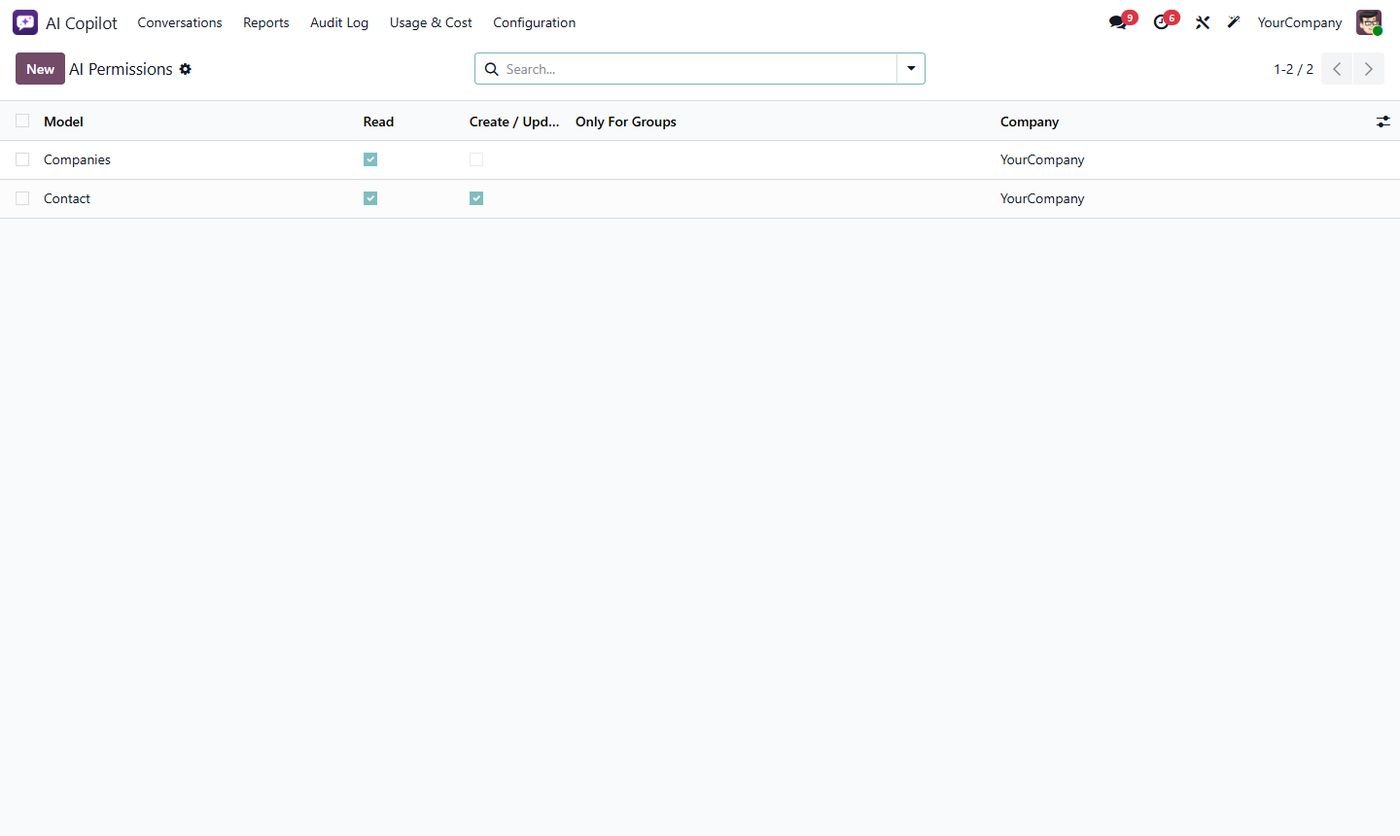
AI permissions per model

Allow read or write per model and limit models to some user groups.

AI permissions per model
Step 11

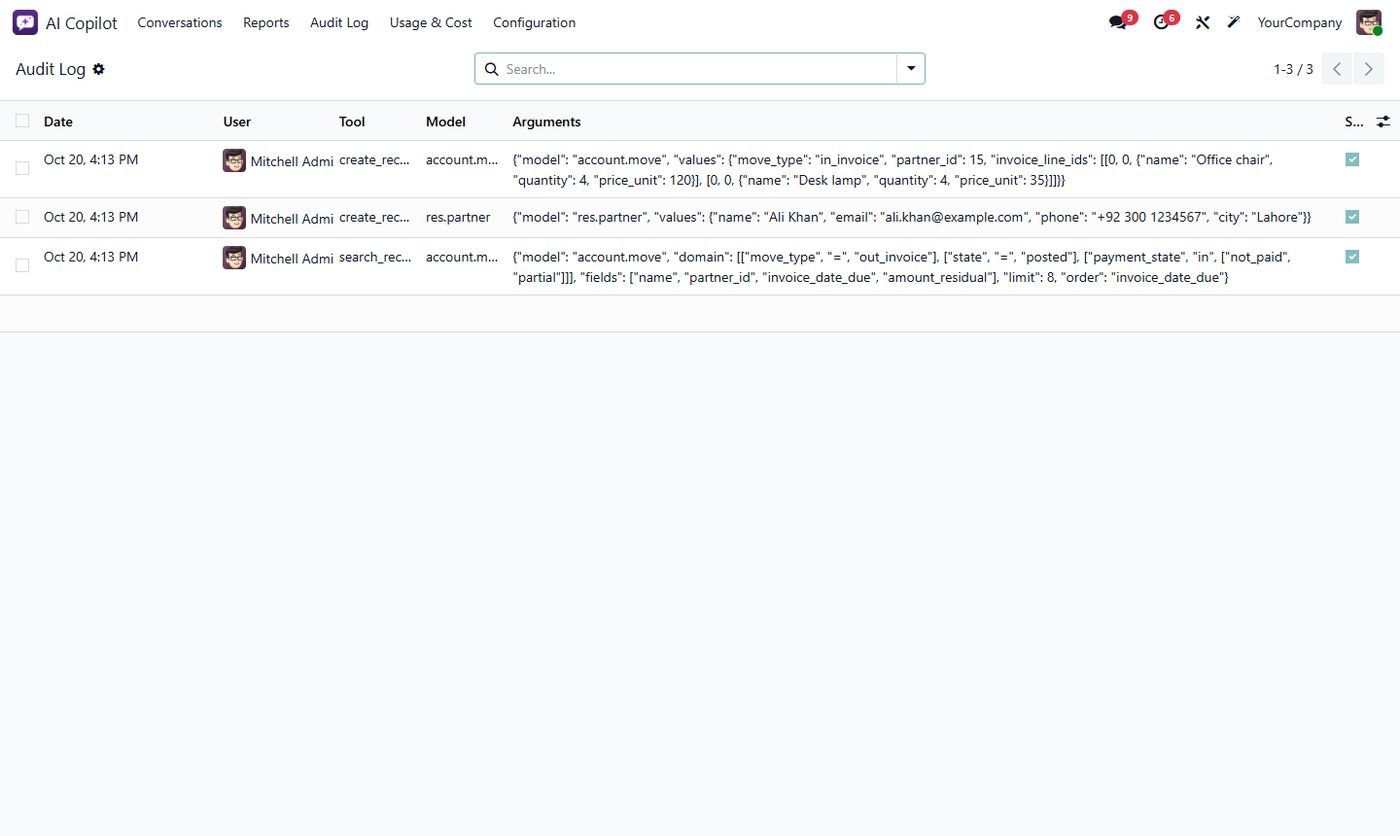
Audit log

Every AI action with user, tool, model, arguments and result, failed ones included.

Audit log
Step 12

Usage and cost

Tokens and cost per user and provider, with daily and monthly filters.

Usage and cost
Step 13

Manage ready prompts

Create your own prompt buttons and choose who sees them.

Manage ready prompts
Step 14

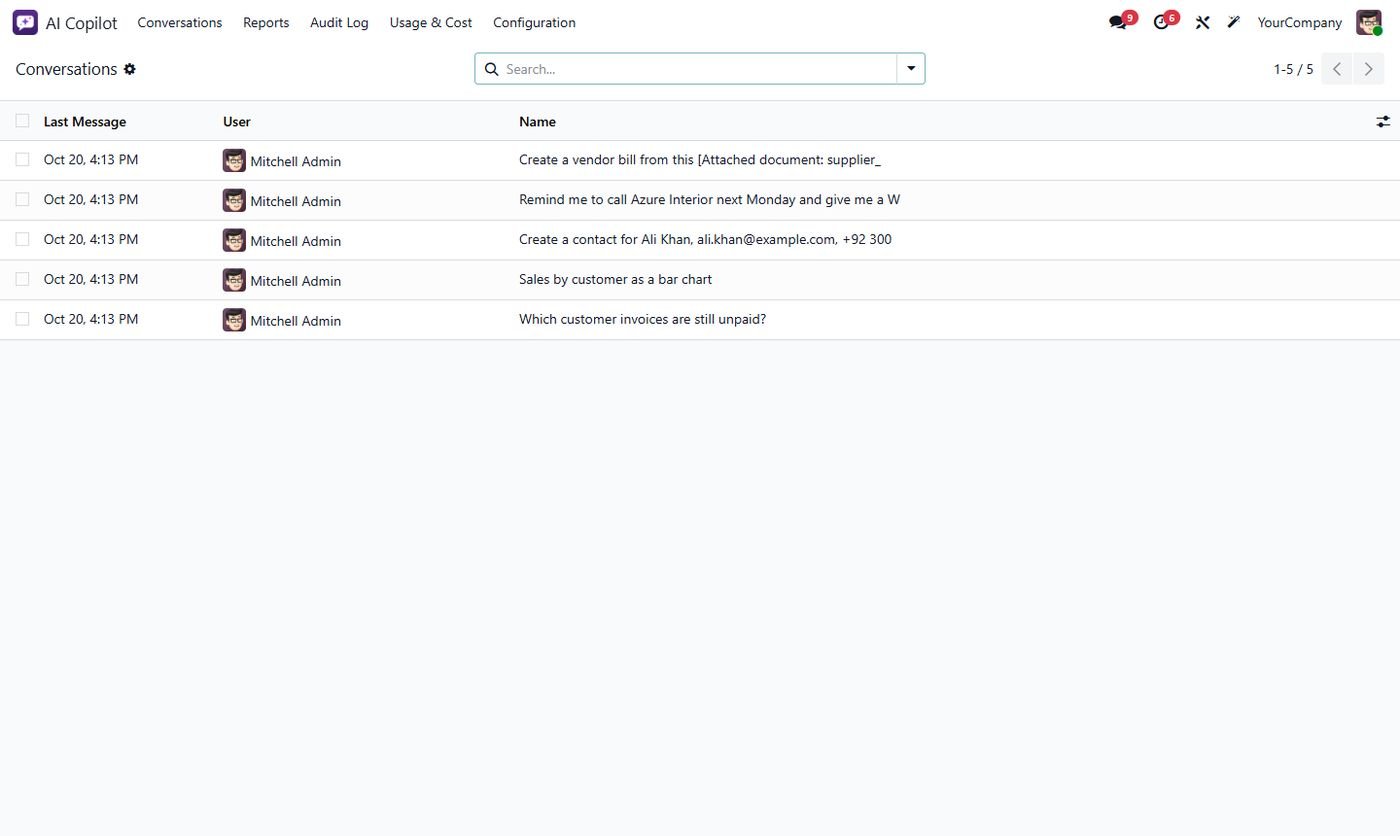
Conversations

Every chat per user; managers can review all conversations.

Conversations
Step 15

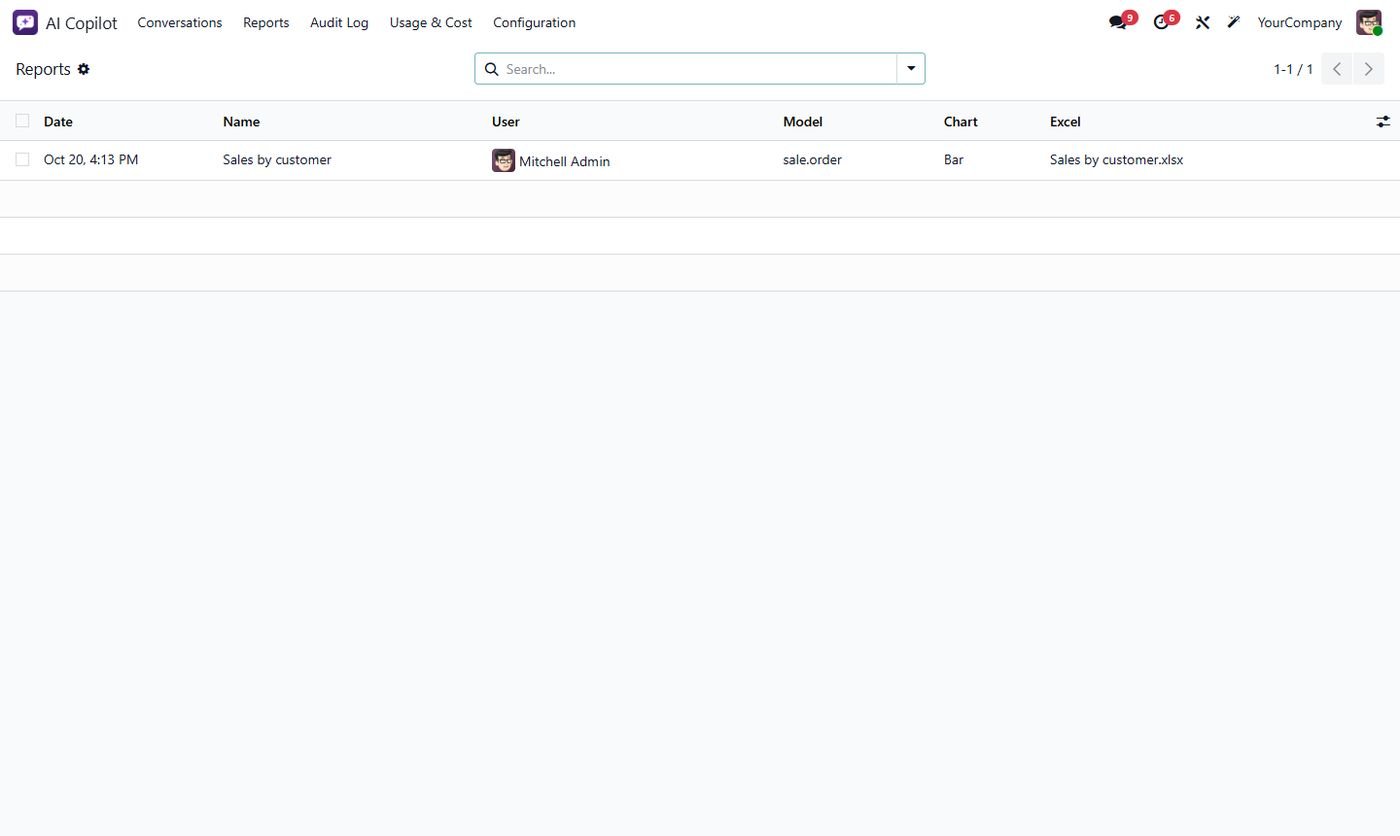
Saved reports

Every chart report with its Excel file, ready to download again.

Saved reports
Common questions

Questions aboutthis module.

Something else? Ask our team.

You need an API key from the provider you choose (OpenAI, Anthropic, Google, OpenRouter, Groq or DeepSeek), paid to them by usage. You can also use a free local model with Ollama, with no key at all.

No. Every create, update, email or reminder is shown as a card and only happens after you click Approve. There is no delete tool at all.

No. The AI works with the user's own access rights and record rules, and you can limit it further per model and per group.

Every language your AI model understands, including English, Urdu, Roman Urdu, Arabic, French and Spanish. It answers in the user's language.

Yes. Each answer shows its tokens and cost in Usage & Cost. Set a daily token limit per user and a monthly budget for the company.

PDF with text, CSV, TXT and images (PNG, JPG, WEBP). Images and scanned bills need a vision model such as GPT-4o, Claude or Gemini.

Yes, on Community and Enterprise from Odoo 14 to 20.

Not sure it's theright fit?

Book a free consultation and we'll help you pick the right modules for your workflow.