
Accounting & Finance Community

PesaPal Payment Provider (M-Pesa, Airtel Money & Cards)

Accept Card & Mobile Money on Odoo using M-PESA, Airtel Money, Equity Bank, Coop Bank, MasterCard, VISA, American Express, and e-wallets. Empower your customers to pay easily with mobile money or cards. Enjoy instant payment validation, secure transactions, and automated reconciliation — all within Odoo.

$99.01 USD
Choose your Odoo version
Ask a question
Built by an Odoo partner Initial setup support Download link by email
PesaPal Payment Provider (M-Pesa, Airtel Money & Cards)
What's included

Key features

1

Comprehensive Multi-Channel Payments

Accept everything from Mobile Money (M-PESA, Airtel Money) to International Credit/Debit cards (VISA, MasterCard, Amex) and E-wallets in a single integration.

2

Instant Payment Validation

No more waiting for SMS confirmations. Transactions are validated in real-time, instantly updating the order status in Odoo from "Pending" to "Paid."

3

Automated Bank Reconciliation

Drastically reduce accounting work. The module automatically matches incoming payments with corresponding Invoices or Sales Orders, ensuring your books are always up-to-date.

4

Secure STK Push (M-PESA/Airtel)

Enhance user experience with STK Push technology. Customers receive a secure prompt on their mobile phones to enter their PIN and authorize payments instantly.

5

Seamless eCommerce Checkout

Provides a smooth, mobile-responsive payment experience on your Odoo Website, reducing cart abandonment by offering familiar local payment methods.

Inside the module

Screenshots

Real screens from PesaPal Payment Provider (M-Pesa, Airtel Money & Cards) — click any image to see it full size.

Step 1

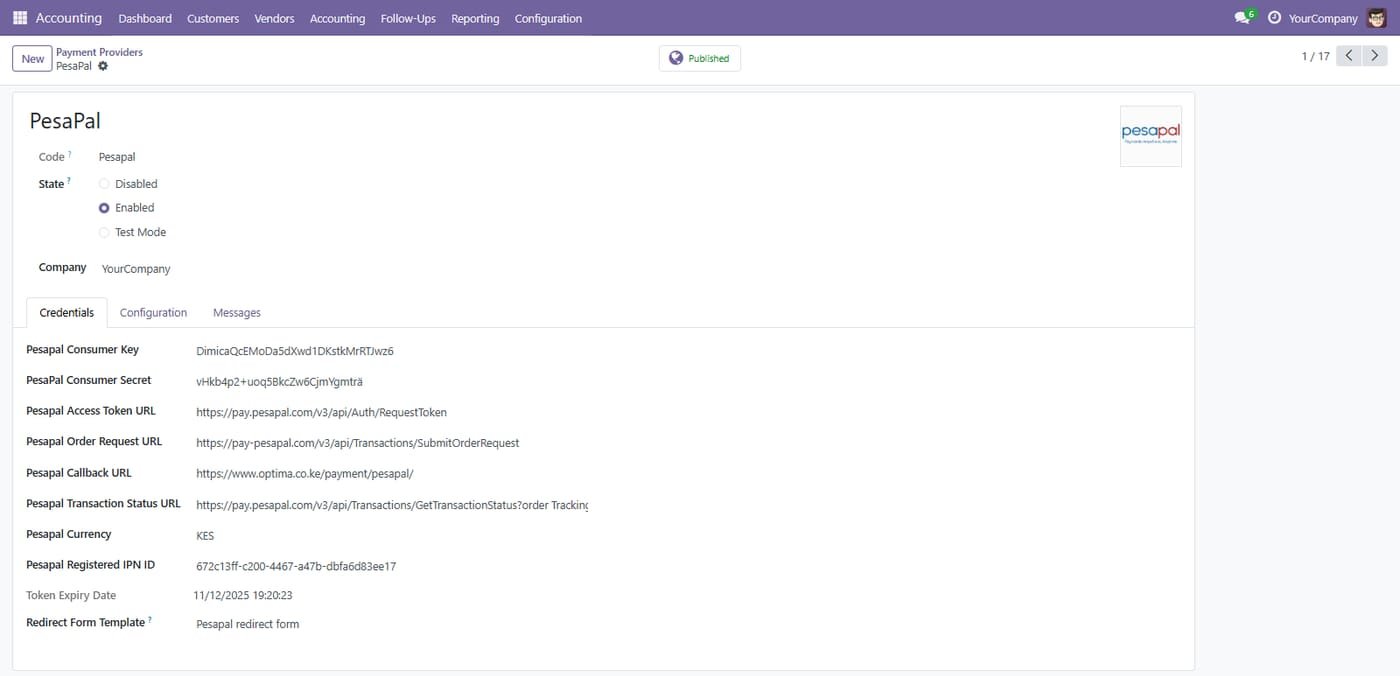
Go To: Accounting Configurations Payments Payment Providers PesaPal

Go To: Accounting Configurations Payments Payment Providers PesaPal
Step 2

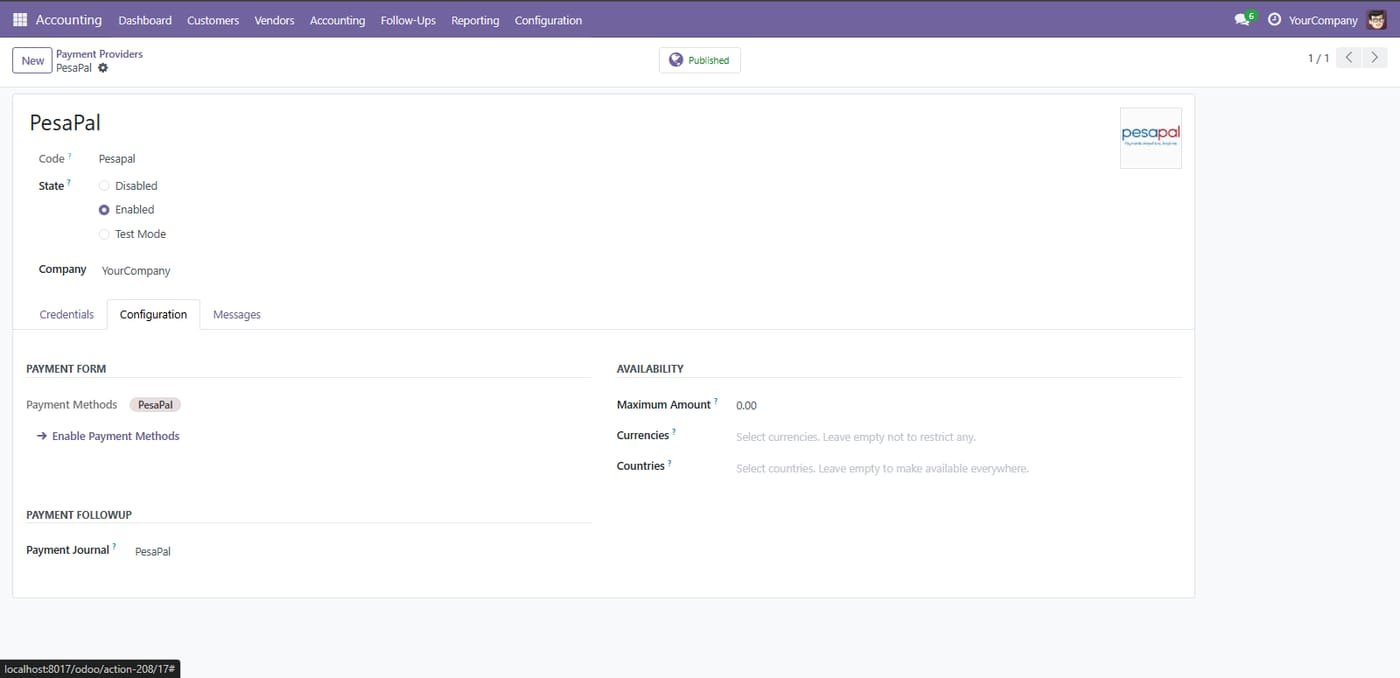
PesaPal payment provider

Enable PesaPal, set the payment journal and limit it by amount, currency or country.

PesaPal payment provider
Step 3

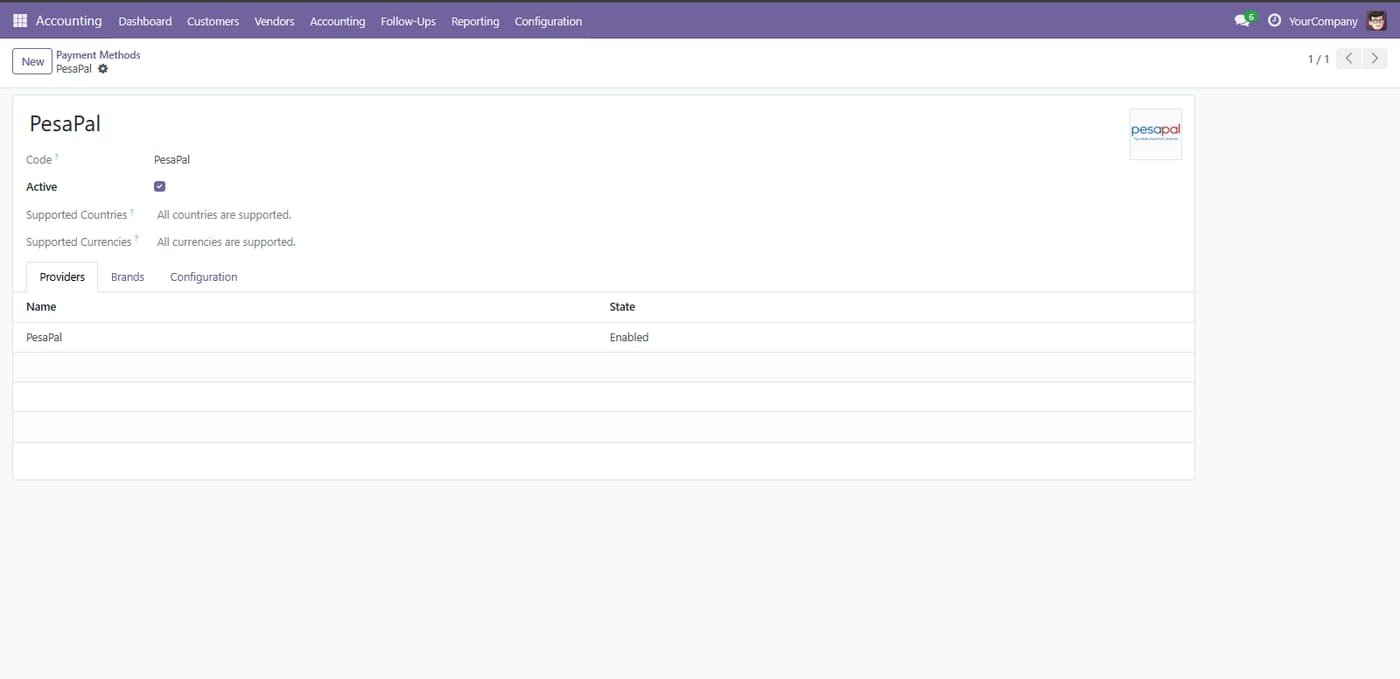
Go To: Accounting Configurations Payments Payment Method PesaPal

Go To: Accounting Configurations Payments Payment Method PesaPal
Step 4

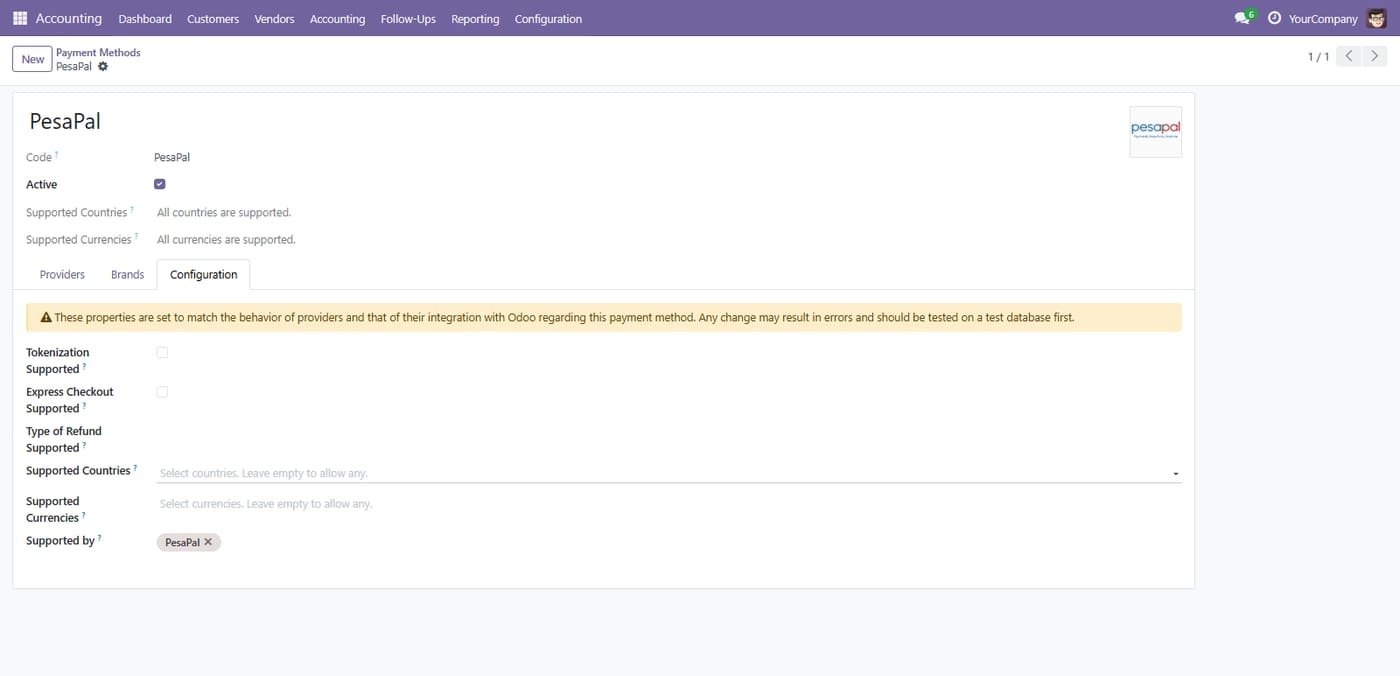
PesaPal payment method settings

Choose supported countries and currencies for the PesaPal payment method.

PesaPal payment method settings
Step 5

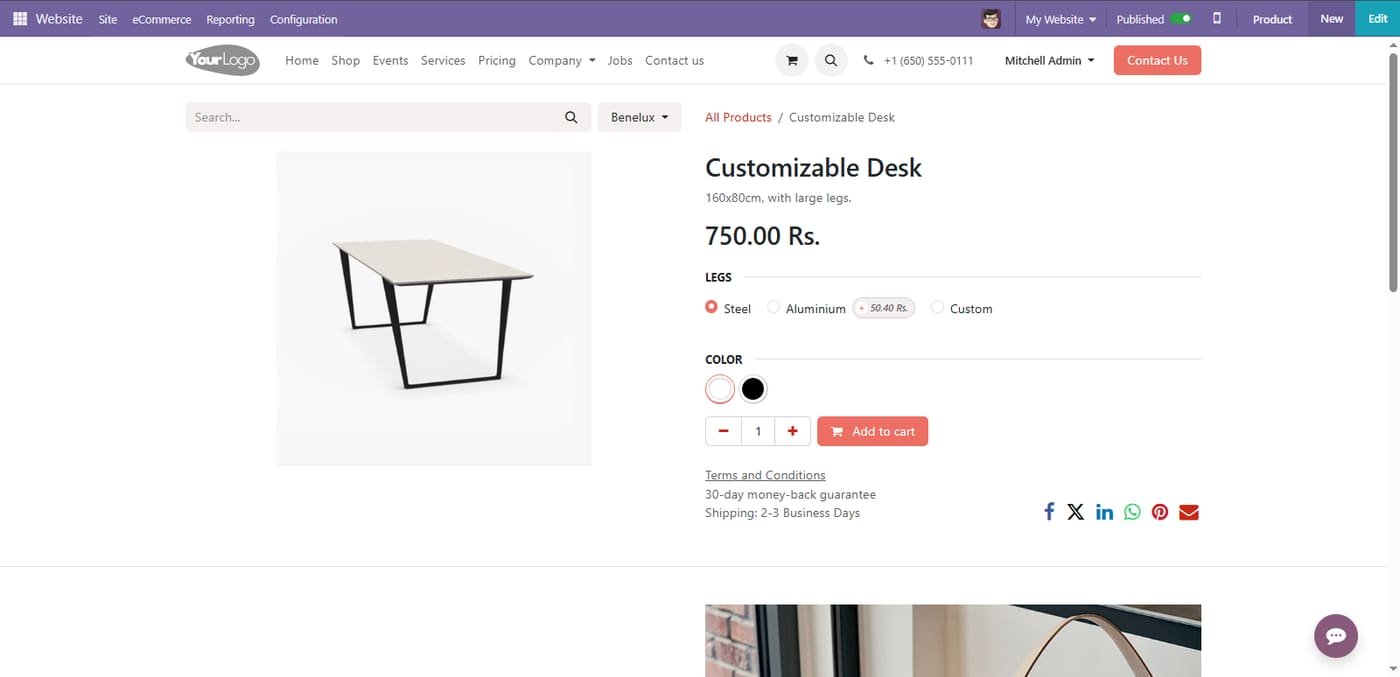
Select your product and proceed to make payment.

Select your product and proceed to make payment.
Step 6

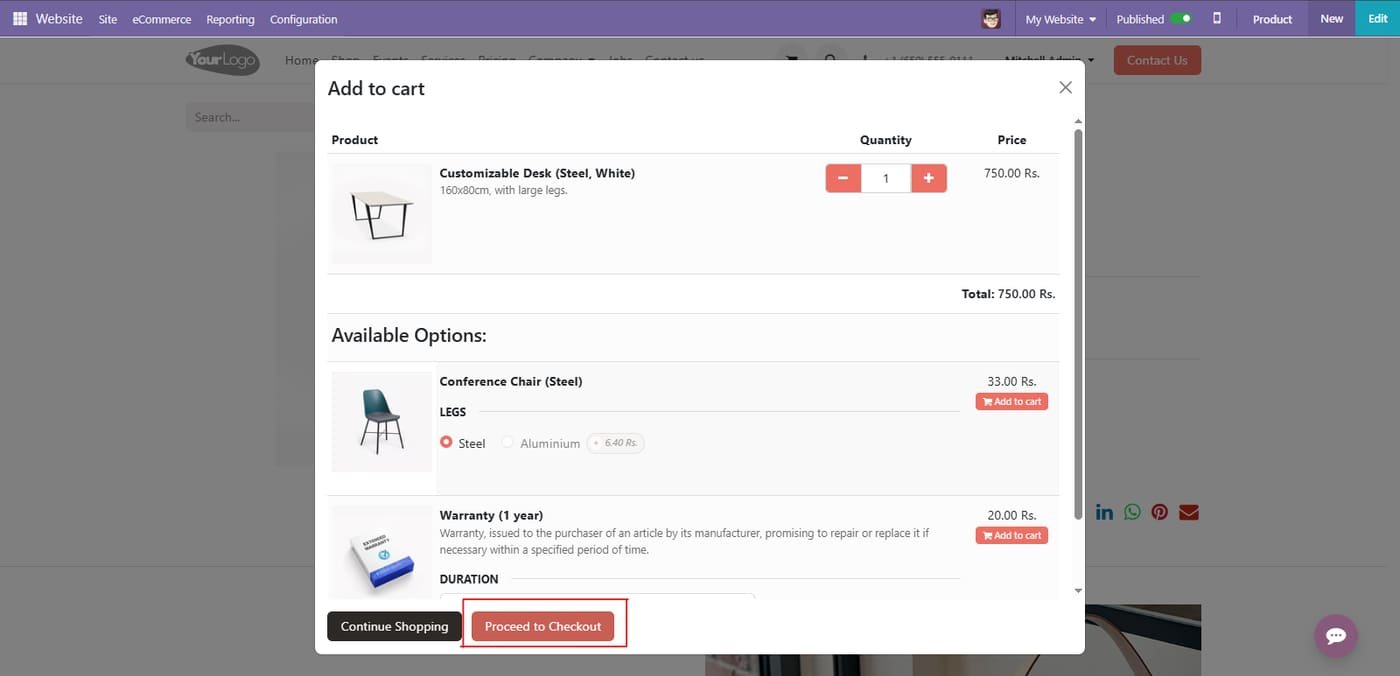
Add to cart on the website

Customers add products and optional extras to the cart, then proceed to checkout.

Add to cart on the website
Step 7

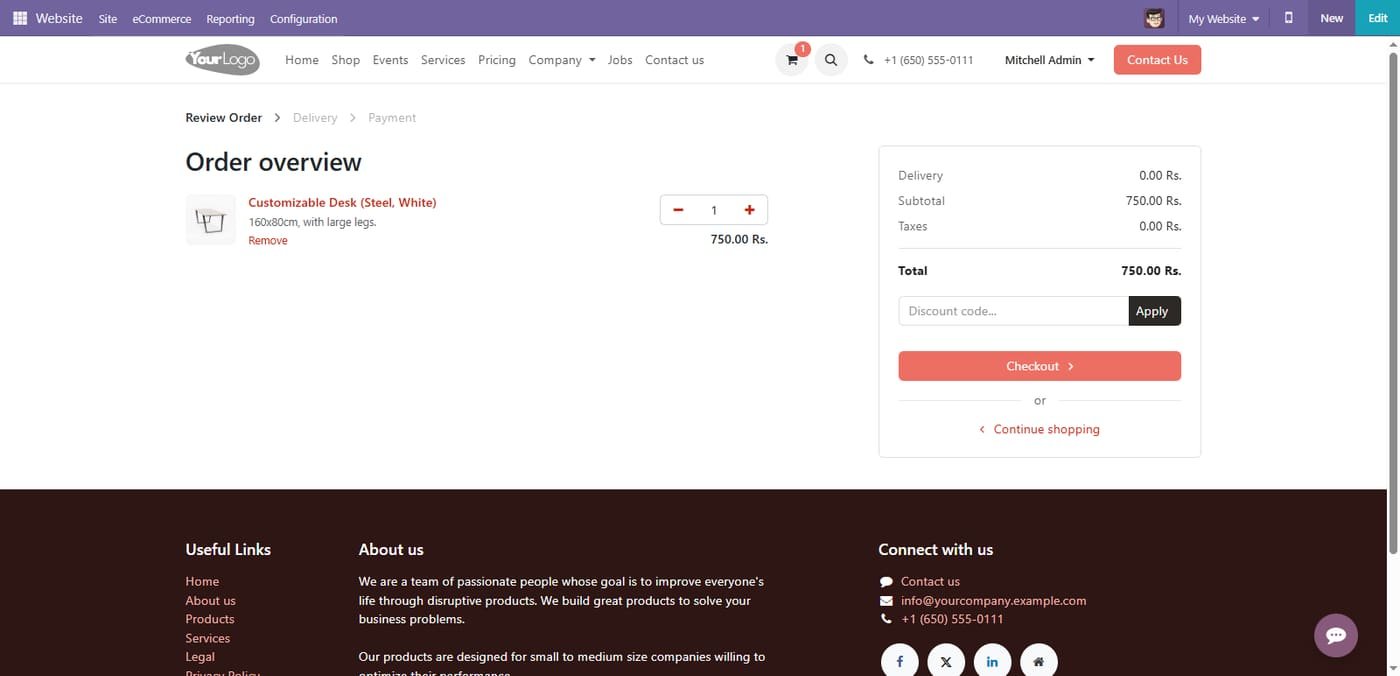
Order overview

Customers review the order total, apply a discount code and continue to checkout.

Order overview
Step 8

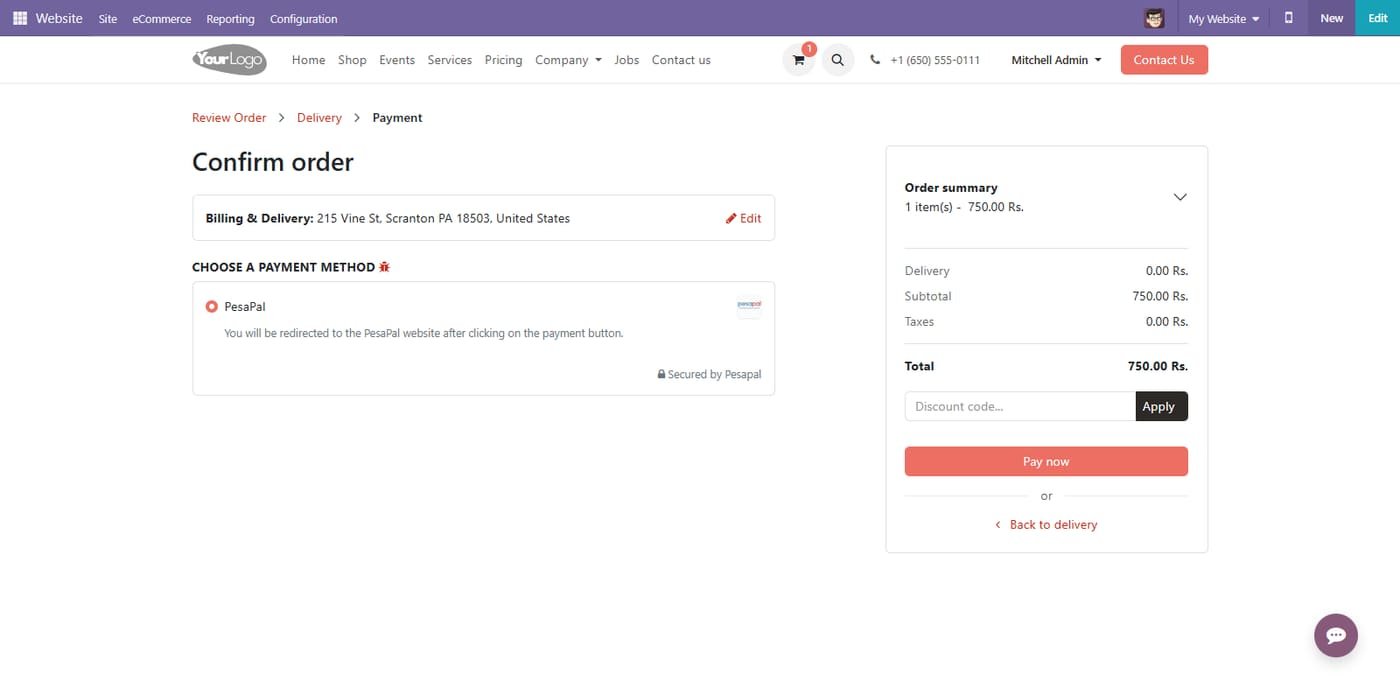
Pay with PesaPal

At checkout the customer picks PesaPal and is redirected to pay securely.

Pay with PesaPal
Step 9

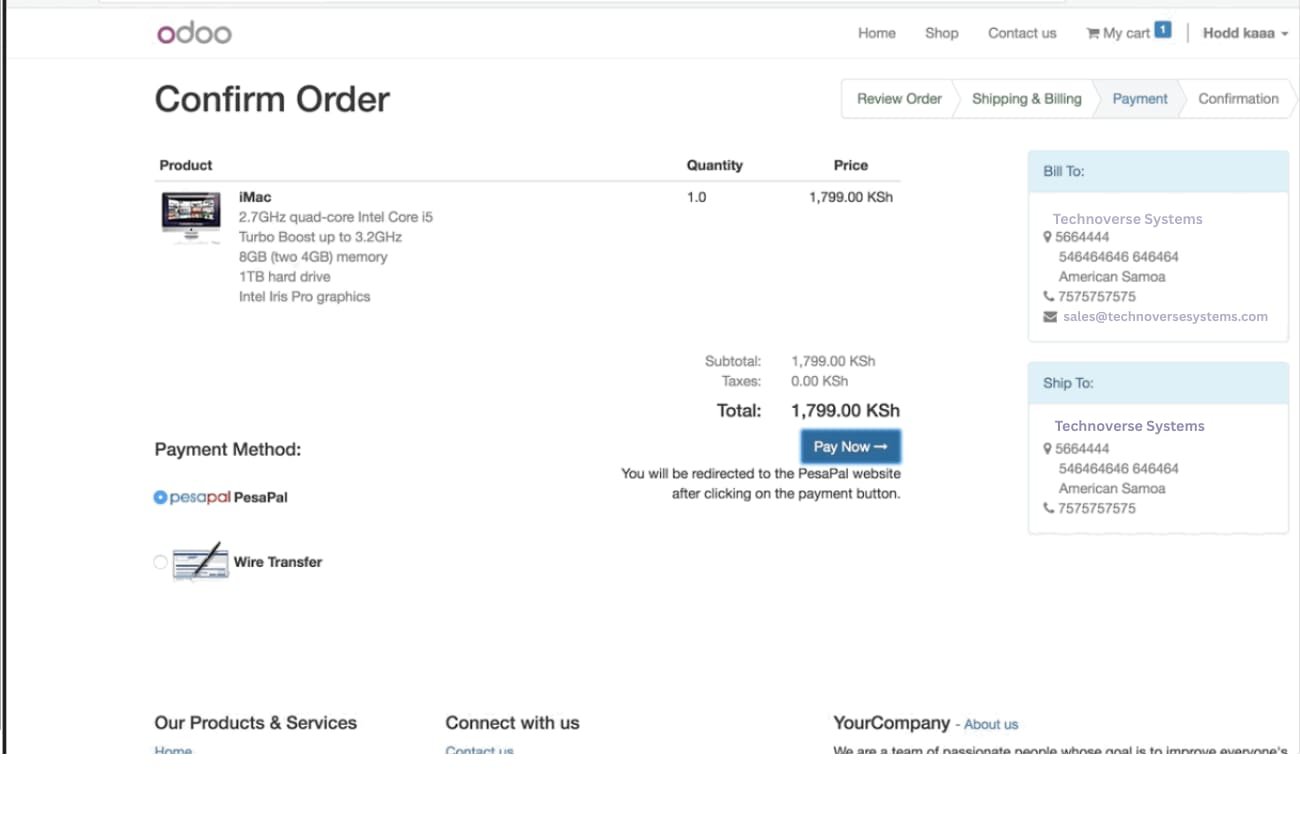
Pay with PesaPal at checkout

Customers confirm the order and are redirected to PesaPal to pay.

Pay with PesaPal at checkout
Step 10

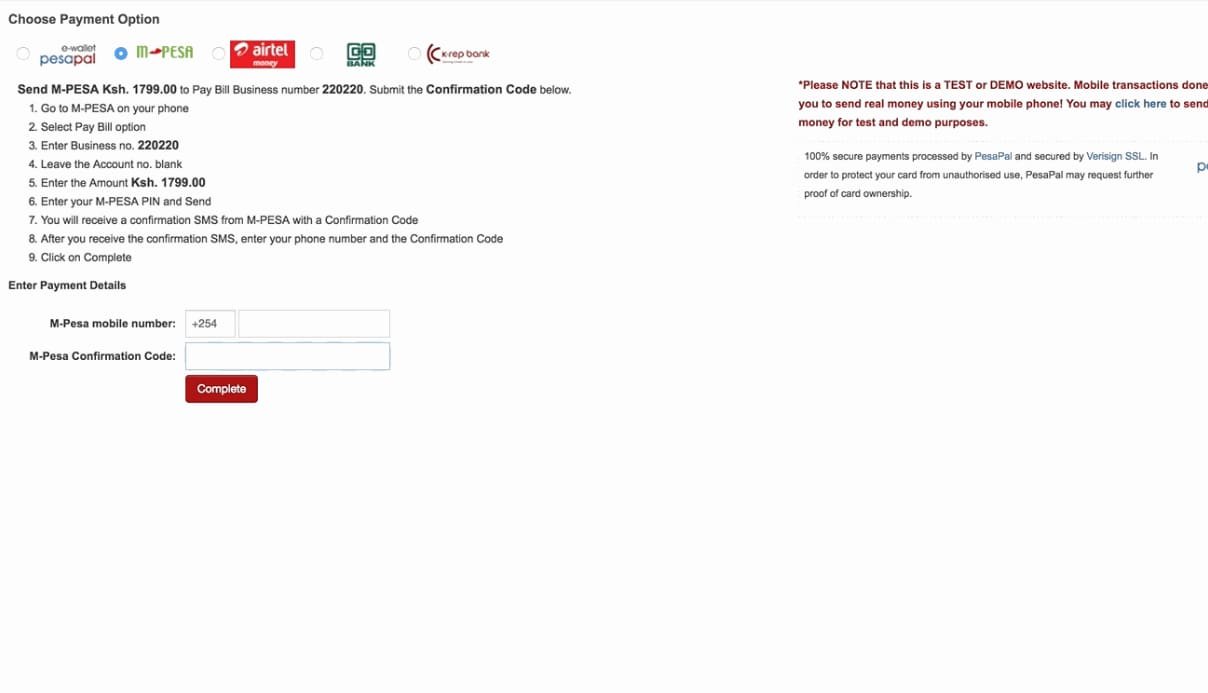
M-PESA and mobile money

Pay through M-PESA, Airtel Money and other PesaPal options with step-by-step instructions.

M-PESA and mobile money
Step 11

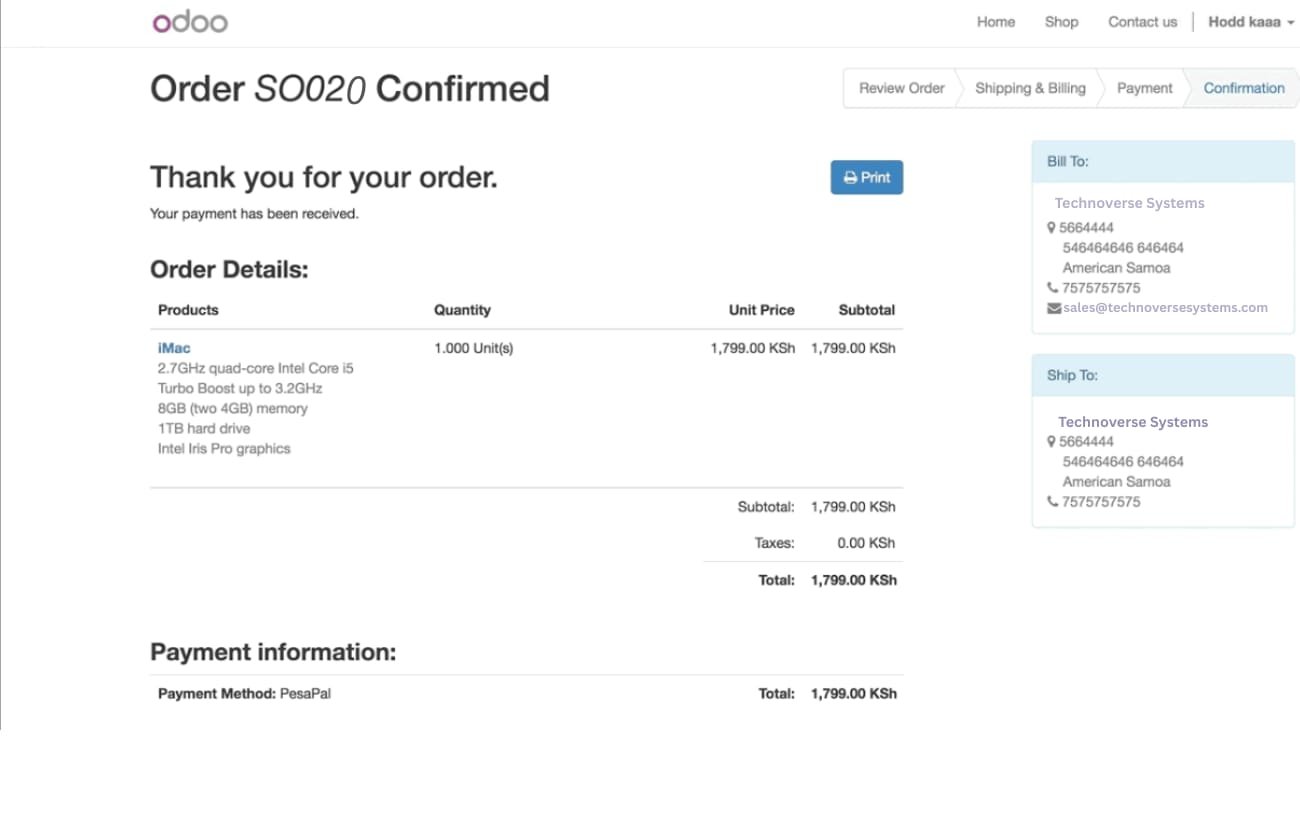
Order confirmed after payment

Once PesaPal confirms the payment, the order is confirmed and the customer sees a thank-you page.

Order confirmed after payment
Common questions

Questions aboutthis module.

Something else? Ask our team.

This build is for Odoo 18. Need it for another version? Contact us and we will let you know when it is available.

Yes. Every purchase includes free deployment — after payment our team installs and sets up the module on your Odoo.

It builds on these Odoo apps: payment.

Not sure it's theright fit?

Book a free consultation and we'll help you pick the right modules for your workflow.