The Sale Order Advance Payment & Auto-Reconciliation is a powerful Odoo module designed to streamline your sales and accounting workflows. It allows users to receive advance payments (partial or full) directly from the Sales Order (SO) stage without the need to create an invoice first. The module provides real-time visibility into the Residual Amount (due balance) and Payment Status (Not Paid, Partially Paid, Paid) right on the Sales Order form. The standout feature is its smart auto-reconciliation: the moment you generate and confirm the final invoice for the order, the system…
Built by an Odoo partnerInitial setup supportDownload link by email
What's included
Key features
1
Direct Advance Payments on Sales Orders
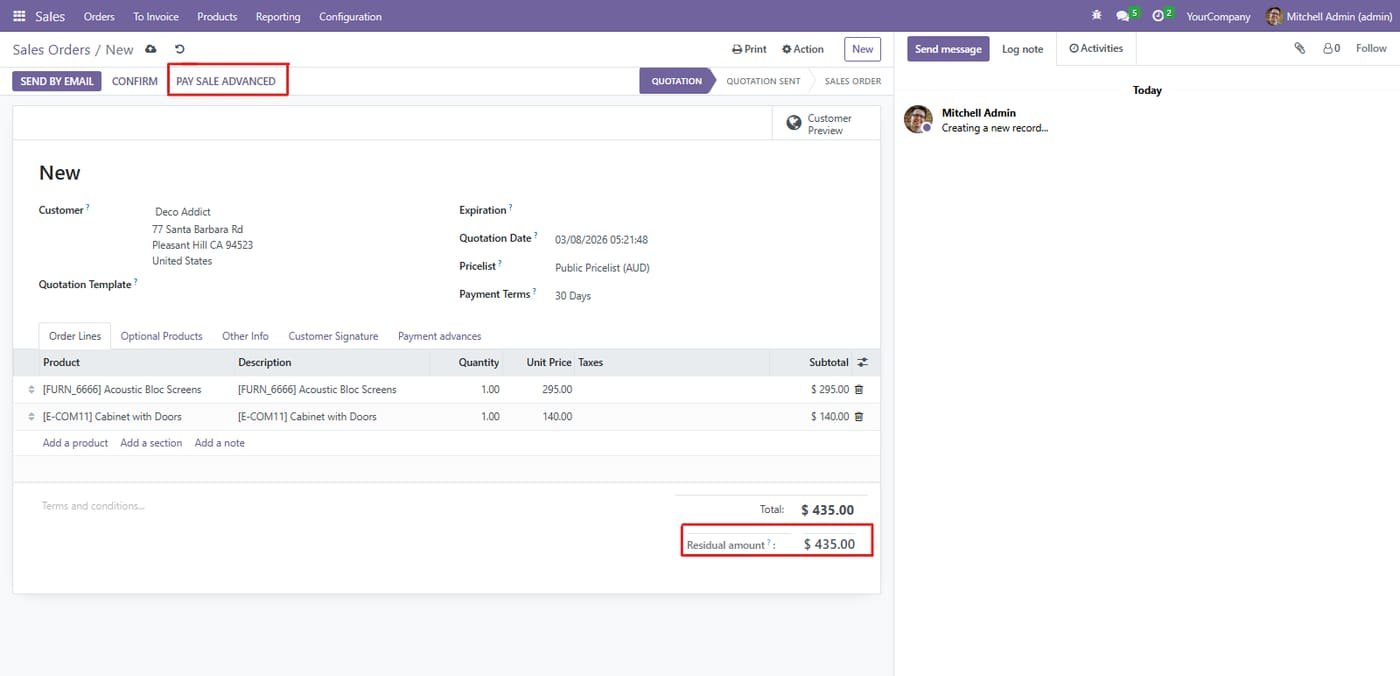
Eliminate the wait for invoice generation. Using the new "Pay Sale Advanced" button on the Sales Order, your sales team can instantly record advance payments directly into your bank or cash journals.
2
Real-Time Payment Status Badges
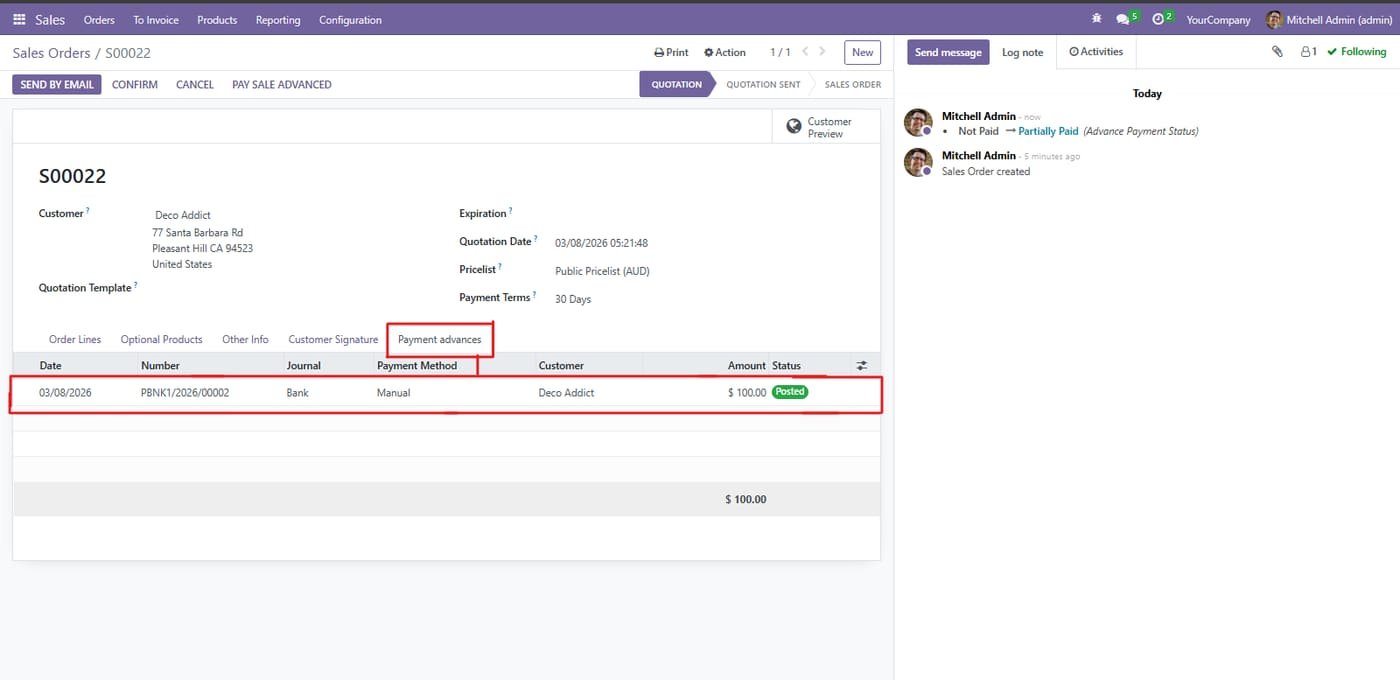
Beautiful, color-coded badges (Not Paid, Partially Paid, Paid) are added to the Sales Order list and form views. This gives your team an at-a-glance understanding of the payment progress for every single order.
3
Live Residual Amount Tracking
A new "Residual Amount" field is displayed right below the total order amount. As advance payments are received, this due balance automatically decreases, keeping both the sales and accounting teams updated in real time.
4
Strict Validation & Error Handling
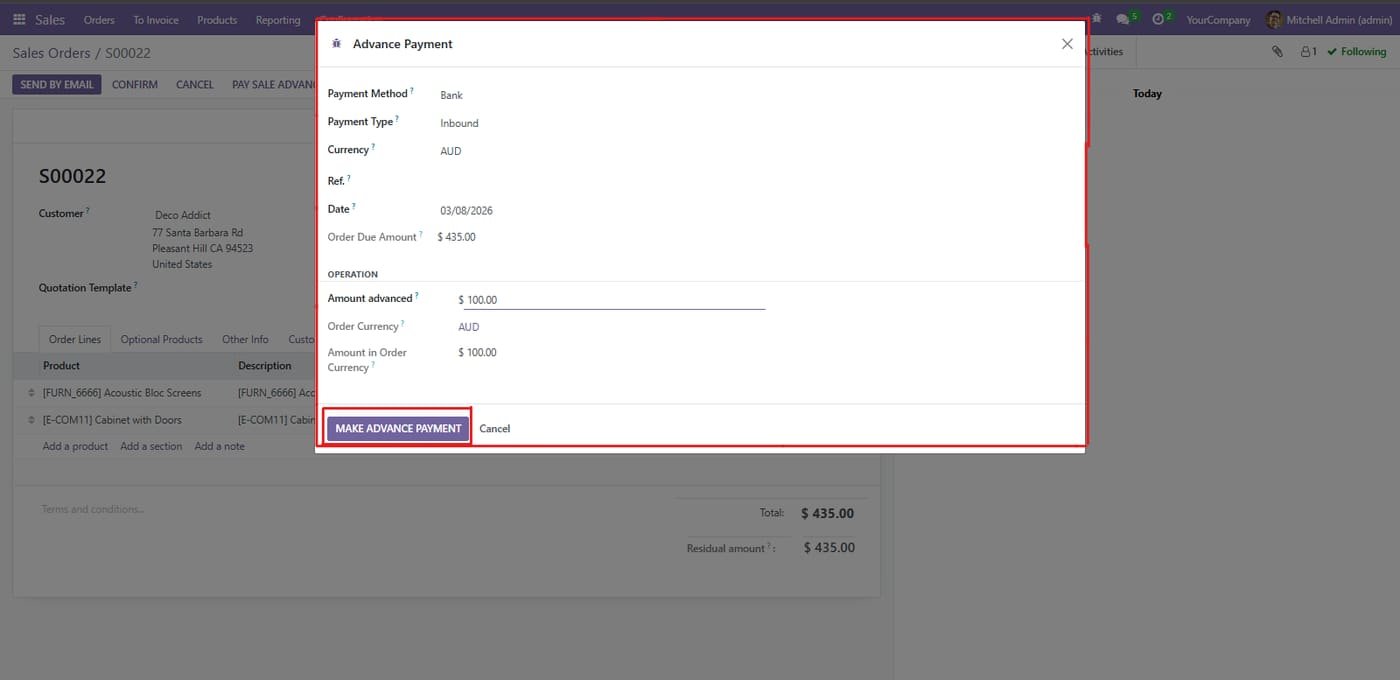
The system acts as a strict safeguard against data entry mistakes. It prevents users from receiving an advance payment that exceeds the total order amount. If a user enters an over-payment, the system instantly blocks it and triggers a validation error.
Inside the module
Screenshots
Real screens from Sale Advance Payment — click any image to see it full size.
Step 1
Once a Sales Order is created, the system displays the total due balance as the "Residual amount" at the bottom right. To collect an upfront payment directly from this screen, simply click the "PAY SALE ADVANCED" button located at the top left menu.
Step 2
Take an advance payment
Record an advance payment on a sales order with the method, date and amount.
Step 3
Payment advances tab
All advance payments are listed on the sales order and its payment status updates.
The "Advanced Variant Prices" module revolutionizes how you manage pricing across your Odoo product catalog by enabling granular, variant-specific price control without complex workarounds. Standard Odoo relies heavily on pricelists for discounting, but this module empowers you to set unique base prices directly on individual variants (like Size, Color, Material combinations). This ensures accurate financial calculations, simplifies multi-currency commerce, and provides complete visibility into margin per SKU. Whether you're selling T-shirts in multiple colors or machinery with different…
Amazon Selling Partner API for Odoo: orders imported every 15 minutes, SKU mapping, FBA/FBM, stock sent to Amazon, tracking numbers confirmed, sync log. Works on Odoo Community.
Selling Partner API (SP-API) with Login with Amazon: North America, Europe and Far East regions, several marketplaces
Orders imported automatically with buyer, items, prices, shipping and taxes; cancellations follow
FBA orders imported as already delivered by Amazon (optional), FBM orders shipped from your warehouse
This module allows businesses to perform backdated operations across key inventory and sales workflows with complete accuracy and control. Users can create backdated inventory adjustments to correct stock levels for past dates, ensuring precise historical reporting. It also allows backdating of purchase orders and sales orders, making it easy to align records with actual transaction timelines. By maintaining accurate data for past activities, the module improves audit compliance, enhances traceability, and provides a more realistic view of stock and order history, all while keeping the…