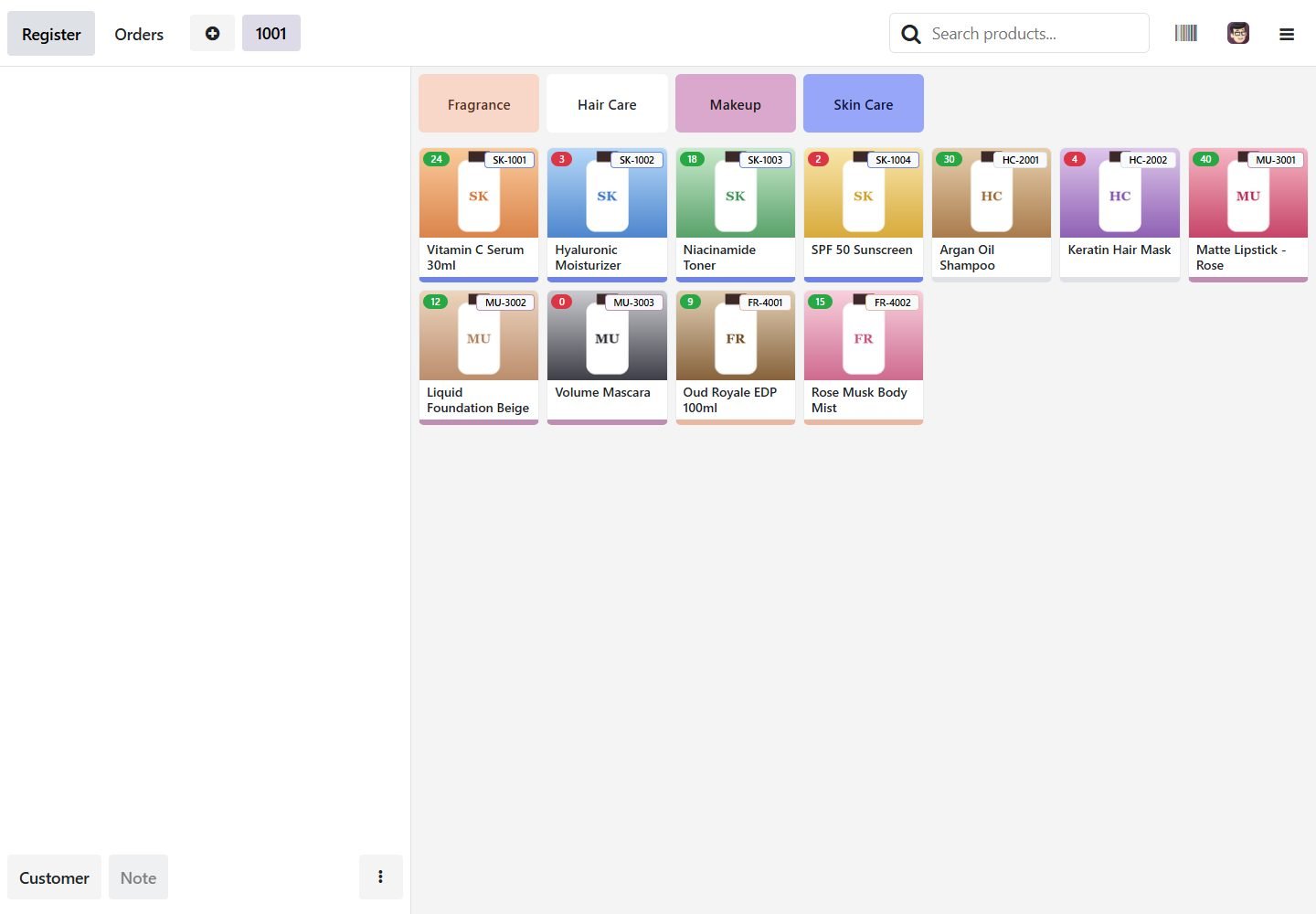
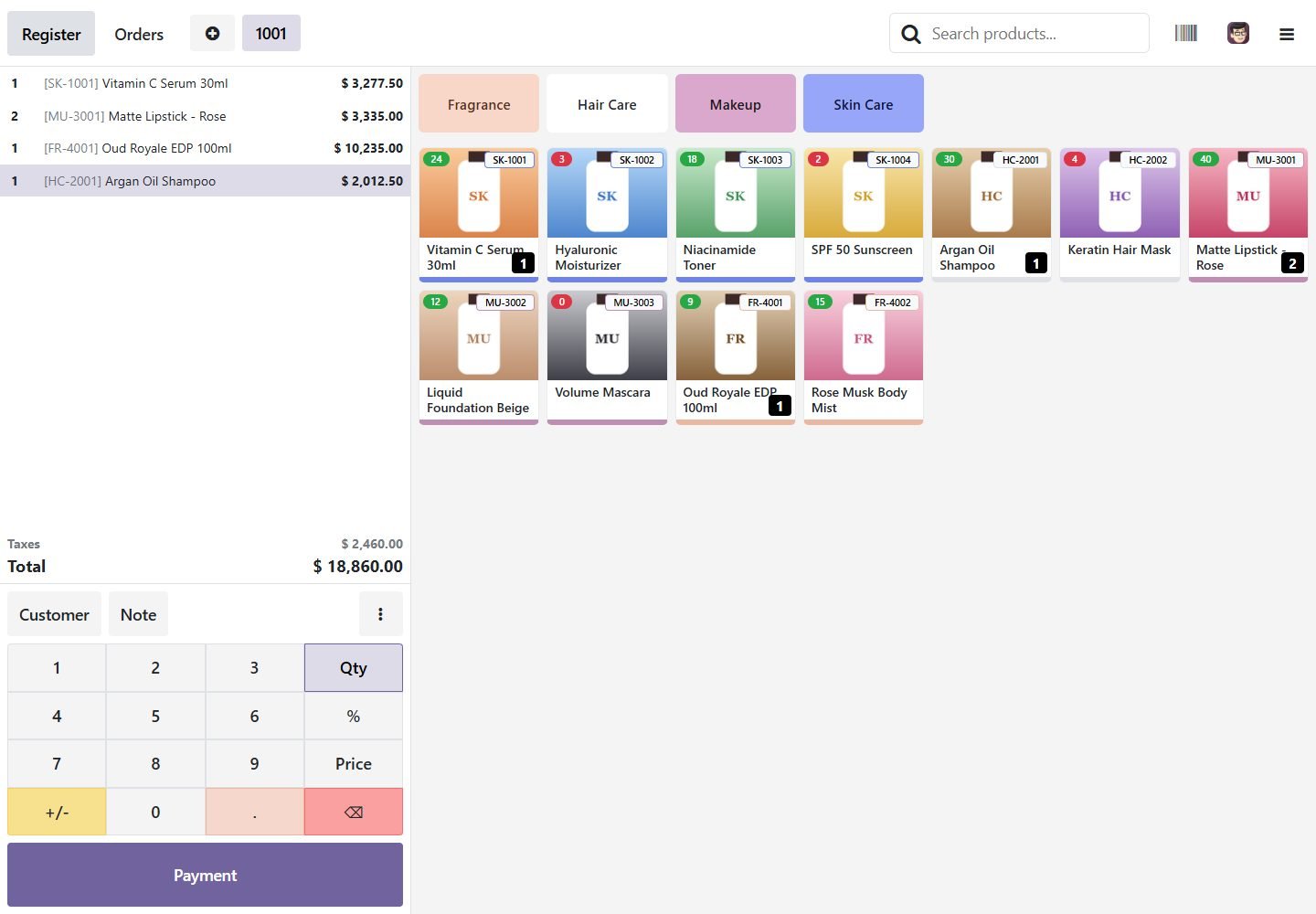
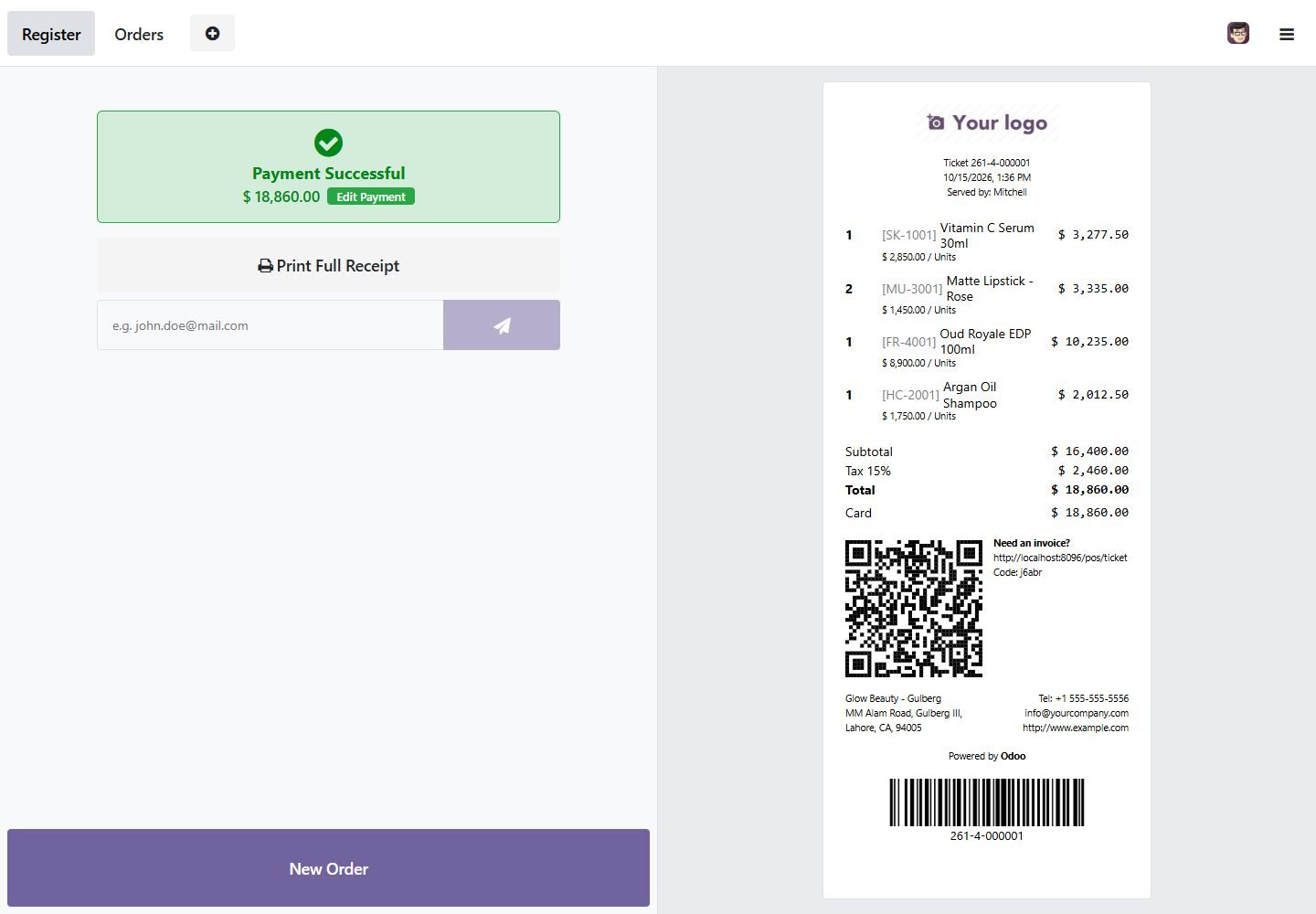
Show the product internal reference (code) in the Odoo 19 Point of Sale: on product cards, in the cart and on printed receipts, with a separate on/off switch for each place per shop.
The "Advanced Variant Prices" module revolutionizes how you manage pricing across your Odoo product catalog by enabling granular, variant-specific price control without complex workarounds. Standard Odoo relies heavily on pricelists for discounting, but this module empowers you to set unique base prices directly on individual variants (like Size, Color, Material combinations). This ensures accurate financial calculations, simplifies multi-currency commerce, and provides complete visibility into margin per SKU. Whether you're selling T-shirts in multiple colors or machinery with different…
Amazon Selling Partner API for Odoo: orders imported every 15 minutes, SKU mapping, FBA/FBM, stock sent to Amazon, tracking numbers confirmed, sync log. Works on Odoo Community.
Selling Partner API (SP-API) with Login with Amazon: North America, Europe and Far East regions, several marketplaces
Orders imported automatically with buyer, items, prices, shipping and taxes; cancellations follow
FBA orders imported as already delivered by Amazon (optional), FBM orders shipped from your warehouse
This module allows businesses to perform backdated operations across key inventory and sales workflows with complete accuracy and control. Users can create backdated inventory adjustments to correct stock levels for past dates, ensuring precise historical reporting. It also allows backdating of purchase orders and sales orders, making it easy to align records with actual transaction timelines. By maintaining accurate data for past activities, the module improves audit compliance, enhances traceability, and provides a more realistic view of stock and order history, all while keeping the…